
Plugging in your FireWire audio interface on Linux and watching it get assigned a random /dev/snd device name is a familiar frustration. You set up JACK or PulseAudio to use hw:1,0, you reboot, and suddenly your interface is hw:2,0. Your session breaks. You waste time hunting for the right device. A custom udev rule solves this for good. It gives your interface a persistent, predictable name and can even run scripts when the device is connected.
A custom udev rule for your FireWire audio interface creates a stable, human-readable device name that stays consistent across reboots and reconnections. This guide walks you through identifying your interface’s vendor and product IDs, writing the rule file, setting device permissions, and testing the configuration. You will eliminate the guesswork from your audio setup and keep your digital audio workstation running smoothly every time.
Why Your FireWire Interface Needs a Custom udev Rule
When you connect a FireWire audio interface, the Linux kernel detects it and assigns a generic name like /dev/snd/dsp or a card number like card1. These names depend on the order devices are discovered. Plug in a USB headset after your interface, and your interface might become card2. Your audio software then fails to find the correct device.
A udev rule reads specific attributes of your hardware the vendor ID and product ID and creates a persistent symlink. It can also set group ownership and permissions, so your user account can access the device without running everything as root. This is especially important for real time audio work where latency and permissions matter.
For a deeper look at how udev interacts with the kernel for FireWire devices, see our guide on optimizing linux kernel modules for enhanced hardware compatibility.
Step 1: Identify Your FireWire Audio Interface
Before writing a rule, you need to know exactly what your system sees when you plug in the interface. Open a terminal and run this command with the device disconnected:
lsusb
Wait. Your FireWire interface is not USB. It uses the IEEE 1394 bus. Use lsusb only if your interface uses a FireWire to USB adapter, which is rare. For native FireWire, use these commands:
lspci | grep -i firewire
This shows your FireWire controller. To see the connected device, run:
ls /dev/ieee1394/
Or use dmesg right after plugging in the interface:
dmesg | tail -20
Look for lines containing ieee1394, firewire, or your interface manufacturer like Focusrite, Presonus, or RME. You will see something like:
[ 123.456] firewire: new device on bus 0, node 0: 0x000123456789
[ 123.456]  vendor_id: 0x000abc, model_id: 0x00def
Record the vendor_id and model_id. These hexadecimal numbers are the key to your udev rule.
If you need more help reading kernel messages, our article on troubleshooting common linux firewire connectivity issues covers common pitfalls.
Step 2: Gather the Correct Attributes with udevadm
udevadm is the tool for inspecting device attributes. Run this command after the interface is connected:
udevadm info --name=/dev/ieee1394/0 --attribute-walk
Replace /dev/ieee1394/0 with the actual device path from the previous step. The output is long, but you are looking for lines like:
ATTRS{vendor_id}=="0x000abc"
ATTRS{model_id}=="0x00def"
ATTRS{manufacturer}=="Focusrite"
ATTRS{model}=="Saffire Pro 40"
You can also use SUBSYSTEM=="ieee1394" and KERNEL=="ieee1394*" as matching criteria. Write down the exact values.
Step 3: Write the udev Rule File
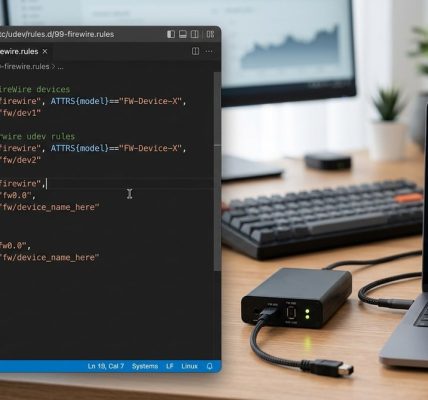
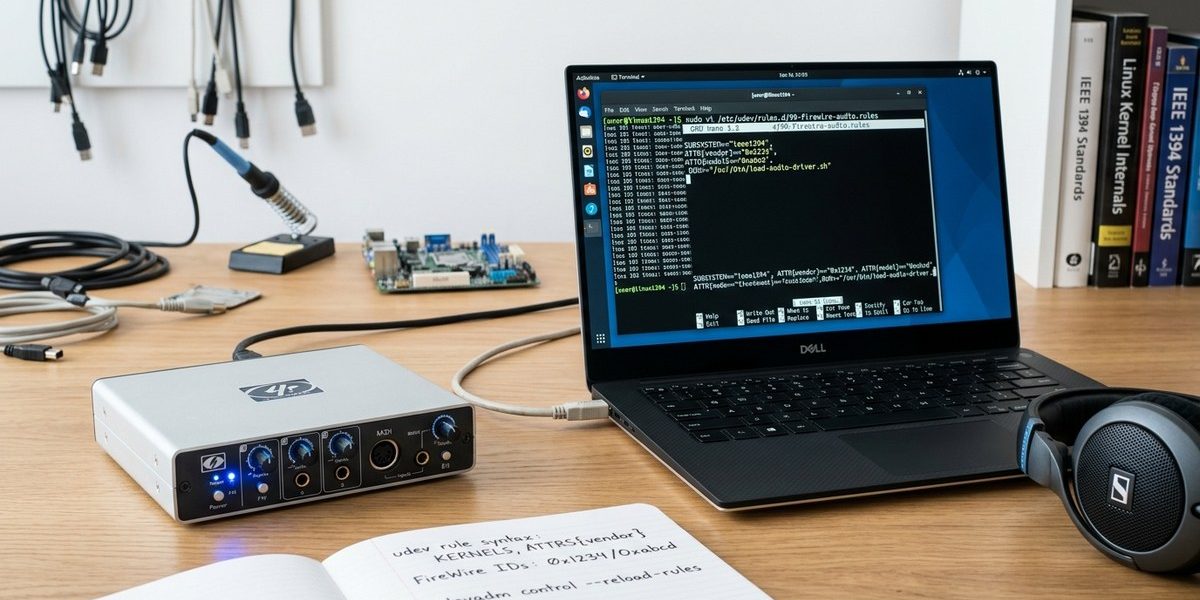
Create a new rule file in /etc/udev/rules.d/. Name it so it loads early, for example 99-firewire-audio.rules. Use your favorite text editor with sudo:
sudo nano /etc/udev/rules.d/99-firewire-audio.rules
Add a rule that matches your interface and creates a symlink. Here is a template:
SUBSYSTEM=="ieee1394", ATTRS{vendor_id}=="0x000abc", ATTRS{model_id}=="0x00def", SYMLINK+="firewire_audio", GROUP="audio", MODE="0660"
Let us break down each part:
| Element | Purpose | Example |
|---|---|---|
SUBSYSTEM |
Matches the FireWire subsystem | ieee1394 |
ATTRS{vendor_id} |
Matches your interface vendor | 0x000abc |
ATTRS{model_id} |
Matches your specific model | 0x00def |
SYMLINK+= |
Creates a persistent symlink | firewire_audio |
GROUP |
Sets device group | audio |
MODE |
Sets permissions | 0660 |
You can also use OWNER to assign the device to a specific user. For a studio machine where only one person uses the interface, this works well.
For more advanced device management techniques, check out mastering firewire device management on linux systems.
Step 4: Test and Reload the Rule
Save the file and reload udev to apply the new rule without rebooting:
sudo udevadm control --reload-rules
sudo udevadm trigger
Unplug and replug your FireWire audio interface. Then check if the symlink was created:
ls -l /dev/firewire_audio
You should see something like:
lrwxrwxrwx 1 root audio 18 Jan 15 10:30 /dev/firewire_audio -> /dev/ieee1394/0
If the symlink does not appear, run udevadm test to simulate the rule:
sudo udevadm test --action=add /dev/ieee1394/0
This shows which rules matched and any errors. Fix the rule file based on the output and repeat the test.
Step 5: Configure Your Audio Software to Use the Persistent Name
Now that you have a stable device path, point your audio software to it.
For JACK:
jackd -d alsa -d /dev/firewire_audio
For PulseAudio:
Edit /etc/pulse/default.pa and add:
load-module module-alsa-sink device=/dev/firewire_audio
For PipeWire:
PipeWire uses device properties. You can set the device name to match the symlink in your configuration files.
Your audio sessions will now survive reboots and device reconnections. No more hunting for the right card number.
If you run into permission issues, our guide on mastering firewire device configuration on linux systems has additional troubleshooting steps.
Common Mistakes and How to Avoid Them
Even experienced Linux users make errors when writing udev rules. Here are the most frequent ones:
| Mistake | Why It Fails | Fix |
|---|---|---|
Using ATTR instead of ATTRS |
ATTR matches the device itself, ATTRS matches parent devices |
Use ATTRS for vendor and model IDs |
| Wrong subsystem name | FireWire uses ieee1394, not firewire |
Check udevadm output for the correct subsystem |
| Missing quotes around values | udev requires double quotes for attribute values | Write ATTRS{vendor_id}=="0x000abc" |
| Forgetting to reload rules | Old rules stay cached until reload | Run udevadm control --reload-rules |
| Symlink already exists | Another rule may have created it | Use a higher priority number like 10- to load early |
Expert advice: Always test your rule with
udevadm testbefore relying on it. A single typo can prevent the rule from matching, and the error messages are clear. If your rule does not work, check the system journal withjournalctl -xe | grep udevfor clues.
Automating Post-Connection Actions
A udev rule can do more than create a symlink. You can run a script when the interface is connected. This is useful for starting JACK, loading an ALSA configuration, or sending a notification.
Add a RUN action to your rule:
SUBSYSTEM=="ieee1394", ATTRS{vendor_id}=="0x000abc", ATTRS{model_id}=="0x00def", RUN+="/usr/local/bin/start_audio_session.sh"
The script must be executable and should not take too long to run, because udev waits for it. For longer tasks, use systemd services triggered by udev.
For a complete walkthrough of this approach, read our article on automating firewire device hot-plug actions with udev rules and systemd.
Your Next Steps
Building a udev rule for your FireWire audio interface is a one time task that pays off every session. You now have a predictable device name, correct permissions, and the option to automate your audio environment. Your workflow becomes smoother, and you spend less time debugging hardware issues.
Start by identifying your interface with udevadm. Write a simple rule. Test it. Then configure your audio software. If you want to take FireWire performance further, our guide on enhance linux firewire performance with advanced tuning techniques covers kernel parameters and buffer settings.
Your FireWire audio interface deserves a stable home on your Linux system. Give it one with a custom udev rule.