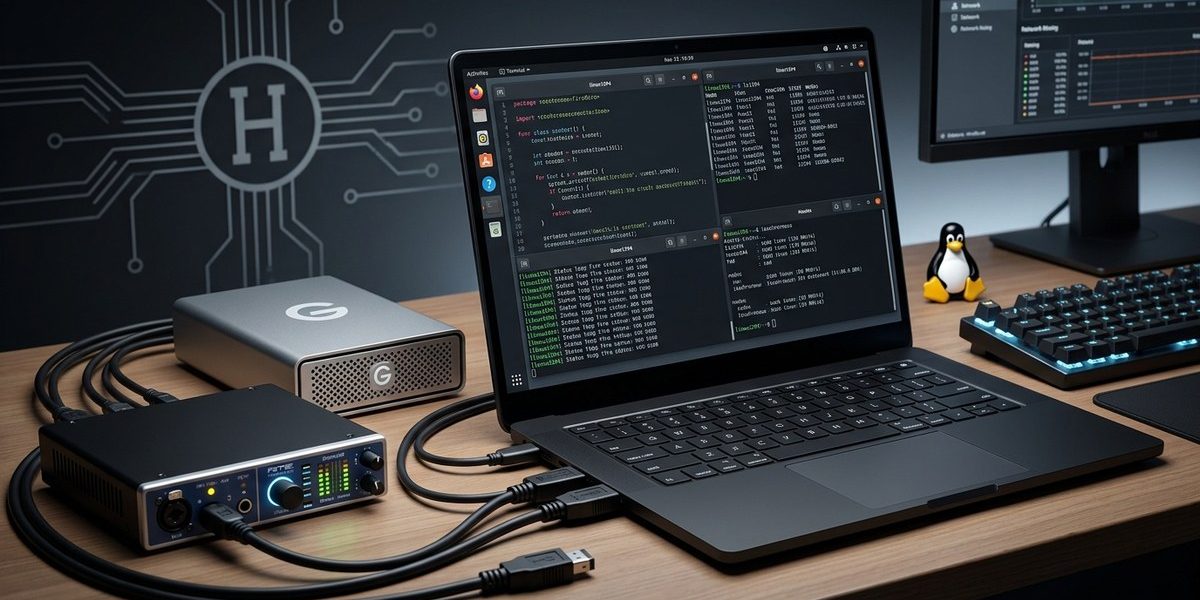

Managing FireWire devices on Linux can seem tricky at first. Whether you are a developer working with audio interfaces or just want your FireWire peripherals to work smoothly, understanding how to handle FireWire device management on Linux is essential. This guide walks through the core concepts, setup steps, troubleshooting tips, and best practices, helping you get the most out of your FireWire hardware.
Effective FireWire device management on Linux involves understanding kernel support, configuring drivers, and [troubleshooting hardware connections](https://www.nhs.uk/conditions/health-and-safety/). With the right setup, Linux users can reliably utilize FireWire peripherals for audio, data transfer, and more, ensuring hardware performs optimally and issues are minimized.
Understanding FireWire Support in Linux
FireWire, also known as IEEE 1394, is a high-speed interface used for connecting peripherals like digital cameras, audio interfaces, and external drives. Linux has supported FireWire for many years, thanks to the OHCI-1394 driver and other kernel modules. However, hardware compatibility and driver support can vary depending on your Linux distribution and kernel version.
Linux’s FireWire stack includes multiple components:
– The core IEEE 1394 subsystem
– Specific device drivers for different hardware
– User-space tools for configuration and troubleshooting
Most modern Linux kernels include native support for FireWire. Yet, ensuring that your hardware is recognized and working requires proper configuration.
Setting Up FireWire Devices on Linux
Getting your FireWire device up and running involves several steps. Follow this process to streamline the setup:
- Check hardware compatibility and connections
- Install necessary kernel modules and tools
- Verify device recognition
- Configure device settings
- Troubleshoot common issues
1. Verify Hardware Connections and Compatibility
Start by inspecting your FireWire cable and ports. Make sure your device is properly connected and powered if necessary. Some older devices may require specific FireWire cards or controllers. Use commands like lspci to identify your FireWire controller:
lspci | grep -i firewire
This command reveals whether your system detects the FireWire controller. Confirm that the hardware appears and is recognized by the kernel.
2. Install and Load Kernel Modules
Most Linux distributions come with the required modules, but you can manually load them if needed:
sudo modprobe firewire-ohci
sudo modprobe ieee1394
You can ensure these modules load automatically on boot by adding them to /etc/modules.
3. Confirm Device Detection
Once the modules are loaded, check for connected FireWire devices with:
ls /dev/ieee1394/0
or use dmesg for kernel messages indicating device recognition:
dmesg | grep -i ieee1394
Successful detection should display messages about device initialization. If not, consider reconnecting the device or testing on another port.
4. Configure Devices and Access Permissions
Most FireWire devices are hot-pluggable. You might need to set permissions for user-space applications to access the hardware. Adjust udev rules or add your user to relevant groups like video or audio.
Additionally, tools like firewire-connection, libraw1394, or dvgrab can help configure or interact with FireWire devices.
5. Troubleshooting Common FireWire Issues
If your device isn’t recognized or isn’t functioning correctly, review these potential issues:
– Compatibility problems with specific FireWire cards
– Outdated kernel or driver support
– Faulty cables or hardware
Use dmesg logs extensively to troubleshoot. Also, consult your distribution’s forums or Linux hardware compatibility lists for specific hardware issues.
Practical Tips for FireWire Device Management
Managing FireWire devices on Linux can involve various techniques. Here are some practical tips:
- Always keep your kernel updated to benefit from the latest hardware support.
- Use
lspciandlsusbto identify connected hardware. - For audio or video devices, consider installing specialized drivers like ALSA or FFADO.
- When problems occur, disconnect and reconnect devices, then check kernel logs.
- Use
udevadmto monitor device events and troubleshoot permissions.
Common Techniques and Mistakes
| Technique | Description | Common Mistake |
|---|---|---|
| Kernel module loading | Manually load modules with modprobe |
Forgetting to load ieee1394 or firewire-ohci |
| Device permissions | Adjust user permissions for device access | Not adding user to video or audio groups |
| Using user-space tools | Use tools like libraw1394 or dvgrab |
Relying solely on hardware detection without configuration |
| Firmware updates | Update device firmware if supported | Ignoring firmware issues that cause connectivity problems |
Expert tip: If your FireWire device is still not recognized, consider testing with a different FireWire card or port. Some hardware may have limited Linux support, and switching hardware can resolve persistent issues.
Troubleshooting FireWire Device Management on Linux
Persistent issues often stem from hardware incompatibility or driver problems. Here are steps to troubleshoot effectively:
- Verify hardware compatibility on your Linux distribution’s hardware list.
- Check kernel logs with
dmesgimmediately after connecting the device. - Ensure the correct kernel modules are loaded and not blacklisted.
- Use
lsusborlspcito confirm hardware presence. - Test with different cables and ports.
- Update your system to include the latest kernel and driver patches.
In cases where hardware is unsupported, consider using a different FireWire controller or upgrading your system hardware.
Enhancing FireWire Performance and Stability
Once your devices are recognized, optimizing performance involves:
- Ensuring your FireWire controller supports high transfer speeds.
- Using real-time kernel patches if you’re working with audio or video processing.
- Adjusting system parameters such as buffer sizes in your application settings.
- Keeping drivers and firmware updated to fix bugs and improve stability.
Final Checks
Regularly monitor your system logs and test device stability over time. Maintaining a backup of your configuration files helps recover from accidental misconfigurations.
FireWire Device Management on Linux: A Practical Approach
Mastering FireWire device management on Linux means understanding the hardware, properly configuring drivers, and troubleshooting proactively. With patience and the right tools, Linux can provide a reliable platform for FireWire peripherals.
Remember to stay updated with the latest kernel releases and community insights. Testing hardware connections systematically and adjusting permissions can often resolve most issues. Whether you’re working with audio interfaces, external drives, or video equipment, your Linux system can handle FireWire devices efficiently with the right approach.
By following these steps and tips, you can ensure your FireWire peripherals work seamlessly, opening up new possibilities for your workflows or projects. Keep experimenting, stay curious, and enjoy the reliable performance Linux offers for FireWire device management.
Happy managing your FireWire devices on Linux!