
Getting FireWire devices to work seamlessly on Linux systems can seem intimidating at first. Many enthusiasts and professionals encounter hurdles with driver compatibility, kernel support, and device recognition. However, with the right approach, setting up FireWire audio interfaces and other peripherals becomes much more manageable. This guide walks you through the essential steps to get your FireWire devices running smoothly on your Linux setup.
Configuring FireWire devices on Linux involves verifying hardware compatibility, installing necessary drivers, and adjusting system settings. Following a structured process ensures reliable operation of FireWire audio interfaces and peripherals for professional and hobbyist use alike.
Understanding FireWire Support on Linux
FireWire, also known as IEEE 1394, was once a popular interface for high-speed data transfer, especially in audio and video production. While its popularity has waned in consumer devices, Linux continues to support FireWire hardware through dedicated drivers and kernel modules. The key to successful configuration is understanding how Linux handles FireWire devices and what components are involved.
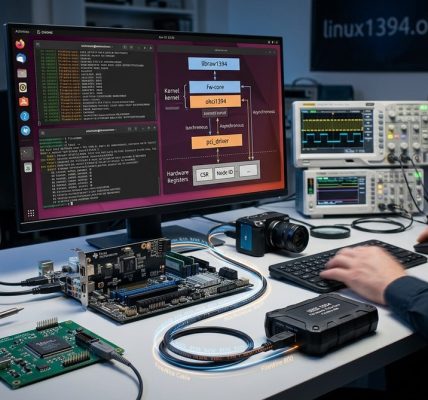
Linux FireWire support primarily relies on the firewire subsystem within the Linux kernel. This includes the core driver, the IEEE 1394 subsystem, and specialized drivers for specific hardware. Many FireWire audio interfaces use the FireWire (or IEEE 1394) port to transfer data directly to the system. Ensuring your kernel has built-in or loadable support for FireWire is the first step.
Preparing Your System for FireWire Device Setup
Before diving into device-specific configuration, follow these preliminary steps:
-
Check Hardware Compatibility: Confirm your FireWire port and device are supported. Most modern Linux kernels support common PCI and PCIe FireWire cards. For laptops or desktops with onboard FireWire, compatibility varies by manufacturer.
-
Verify Kernel Support: Ensure your Linux kernel includes FireWire support. You can check this by running
lsmod | grep firewire. If no output appears, modules may need to be loaded manually or your kernel might require updating. -
Install Necessary Drivers: The core FireWire driver is usually included in recent Linux distributions. For professional audio interfaces, the FFADO (FireWire Audio Driver) is essential for proper operation.
-
Update System Packages: Keep your system updated to include the latest kernel and driver modules. On Debian-based systems, use
sudo apt update && sudo apt upgrade.
Step-by-Step FireWire Device Configuration Linux
Follow these steps to set up and troubleshoot FireWire audio interfaces or peripherals:
1. Verify Hardware Recognition
Connect your FireWire device and run:
dmesg | grep firewire
This command displays kernel messages related to FireWire. Look for lines indicating device detection. You should see entries mentioning firewire-ohci or firewire-core.
2. Check for Proper Driver Loading
Ensure the relevant modules are loaded:
lsmod | grep firewire
If modules like firewire_ohci, firewire_core, or ohci1394 are missing, load them with:
sudo modprobe firewire_ohci
sudo modprobe firewire_core
For systems with legacy or different hardware, you may need ieee1394 or raw1394 modules.
3. Confirm Device Presence
Use lspci to identify your FireWire card:
lspci | grep FireWire
If the device shows up, the system recognizes the hardware at the PCI level.
4. Install and Configure FFADO Drivers
For professional audio interfaces, installing FFADO is critical. On Debian or Ubuntu, do:
sudo apt install ffado-driver-all
Once installed, open the FFADO configuration tool:
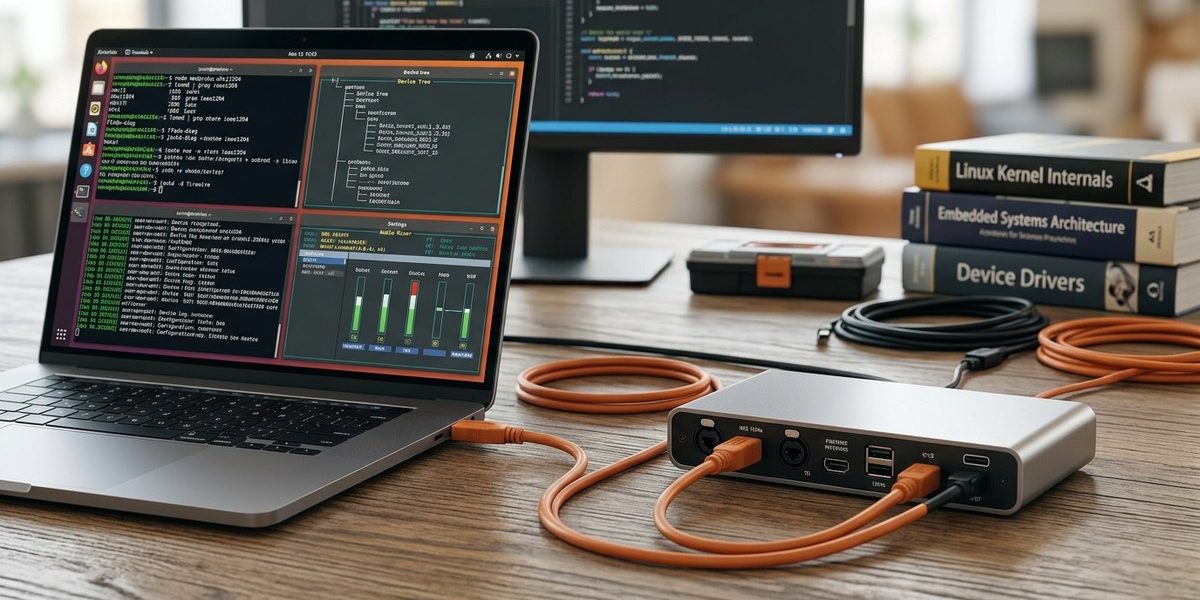
ffado-mixer
Ensure your device is detected and configured correctly.
5. Set Up Your Audio Software
Configure your digital audio workstation (DAW) or audio recording software to recognize the FireWire interface. You may need to select the device explicitly within the application’s audio settings.
6. Testing and Troubleshooting
Test your device with tools like aseqdump or arecord to verify data flow:
arecord -l
This lists available audio capture hardware. If your FireWire device appears, you’re ready to record.
If issues persist:
- Revisit
dmesglogs for errors. - Check for conflicting modules or driver issues.
- Review hardware compatibility lists on community forums or the FFADO project page.
“Patience is key when configuring FireWire devices on Linux. Sometimes, kernel updates or driver tweaks are necessary to achieve stable operation.” — Linux audio expert
Common Techniques and Pitfalls
| Technique | Mistake | Explanation |
|---|---|---|
| Using the latest kernel | Not checking compatibility | Newer kernels may introduce support issues or remove legacy drivers. |
| Installing FFADO | Missing dependencies | FFADO requires specific dependencies; missing them can cause detection failures. |
| Connecting device after driver load | Hot-plug issues | FireWire devices should be connected before powering on or driver loading to ensure proper detection. |
| Ignoring dmesg logs | Overlooking errors | Kernel logs provide crucial clues for troubleshooting hardware recognition and driver issues. |
Tips for Maintaining a Stable FireWire Setup
- Keep your system updated but verify compatibility with your hardware before major upgrades.
- Use stable kernel versions known for good hardware support.
- Regularly check community forums for device-specific advice.
- Backup configuration files for your audio software and system settings.
“Always test your FireWire device after setup by recording a short clip or running a diagnostic tool. This confirms stability before critical sessions.” — seasoned Linux audio engineer
Fine-Tuning for Optimal Performance
Once your device is recognized, consider the following:
- Adjust buffer sizes in your audio software for lower latency.
- Disable unnecessary kernel modules that may conflict.
- Use the
udevadmsystem to manage device permissions if needed.
Why Proper FireWire Device Configuration Matters
Getting your FireWire hardware working reliably on Linux unlocks high-quality audio production capabilities. It offers low latency, high bandwidth, and professional-grade performance. Proper configuration also minimizes dropouts and glitches, ensuring your recordings and live sessions run smoothly.
Taking the time to verify hardware, install the right drivers, and fine-tune your system pays off in stable, high-performance audio work. Whether you’re recording your latest album or managing a podcast, mastering FireWire device setup on Linux empowers your creative process.
Final Thoughts on FireWire Setup on Linux
Configuring FireWire devices may require some patience, but following a structured approach makes the process manageable. Keep your system updated, check logs regularly, and leverage community resources for device-specific tips. With a little effort, your Linux system can become a reliable hub for high-quality FireWire audio interfaces and peripherals.
Happy recording!