
Getting FireWire devices to work smoothly on Linux can be a challenge, especially with evolving kernel support and hardware quirks. Whether you are a musician connecting audio interfaces or a professional using FireWire storage, optimizing Linux FireWire support is key to stable and high-performance operation. This guide walks you through practical steps, kernel configurations, and expert advice to get the most out of your FireWire hardware on Linux systems.
Improving Linux FireWire support involves updating your kernel, configuring modules properly, and choosing compatible hardware. Follow best practices to ensure reliable device connectivity and optimal performance, especially for audio and professional workflows.
Understanding FireWire Support in Linux
FireWire, also known as IEEE 1394, has been a popular choice for fast, reliable data transfer, especially in audio, video, and storage applications. Despite its age, FireWire remains relevant because of its dedicated bandwidth and low latency. Linux’s support for FireWire has improved over the years, but it can still require some tuning.
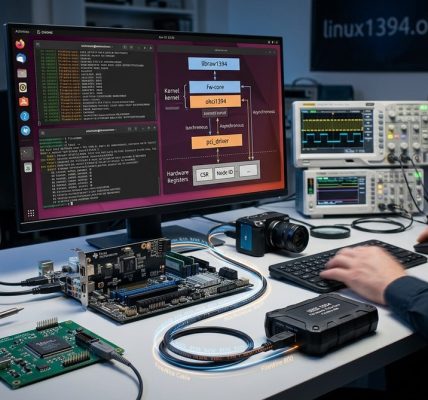
Linux’s FireWire subsystem is primarily managed through kernel modules such as firewire-ohci, firewire-core, and ieee1394. These modules handle the connection, detection, and data transfer processes. The support for various FireWire devices depends on kernel versions, driver availability, and hardware compatibility.
Why Support Can Be Quirky
Older kernels might lack full support for newer FireWire chips. Some devices may not initialize correctly or may experience intermittent failures. Additionally, certain features like isochronous data transfer for audio interfaces need specific configuration. Understanding how Linux handles FireWire can help you troubleshoot and optimize your setup.
Practical Steps to Maximize FireWire Support on Linux
Achieving stable FireWire operation involves a combination of hardware checks, kernel updates, driver configuration, and system tuning. Here’s a step-by-step approach:
1. Keep Your Kernel Up to Date
Linux kernel development continues to improve FireWire support. Using a recent kernel version ensures you have the latest drivers and bug fixes.
- Check your current kernel version with
uname -r. - If you’re running an older kernel, consider upgrading to a newer stable release. Distributions like Ubuntu, Fedora, or Arch often provide recent kernels.
- For bleeding-edge support, you might compile a custom kernel or use kernel PPA repositories.
2. Load and Configure Necessary Modules
Ensure that your FireWire modules are loaded at startup.
- Verify loaded modules with
lsmod | grep ieee1394. - Load modules manually if needed:
sudo modprobe firewire-ohci
sudo modprobe ieee1394
sudo modprobe ohci1394
- To load modules automatically at boot, add them to
/etc/modulesor create a configuration file in/etc/modprobe.d/.
3. Use the Right Hardware and Connectors
Hardware choice is crucial:
- Prefer chips from Texas Instruments or Ricoh, which are well supported.
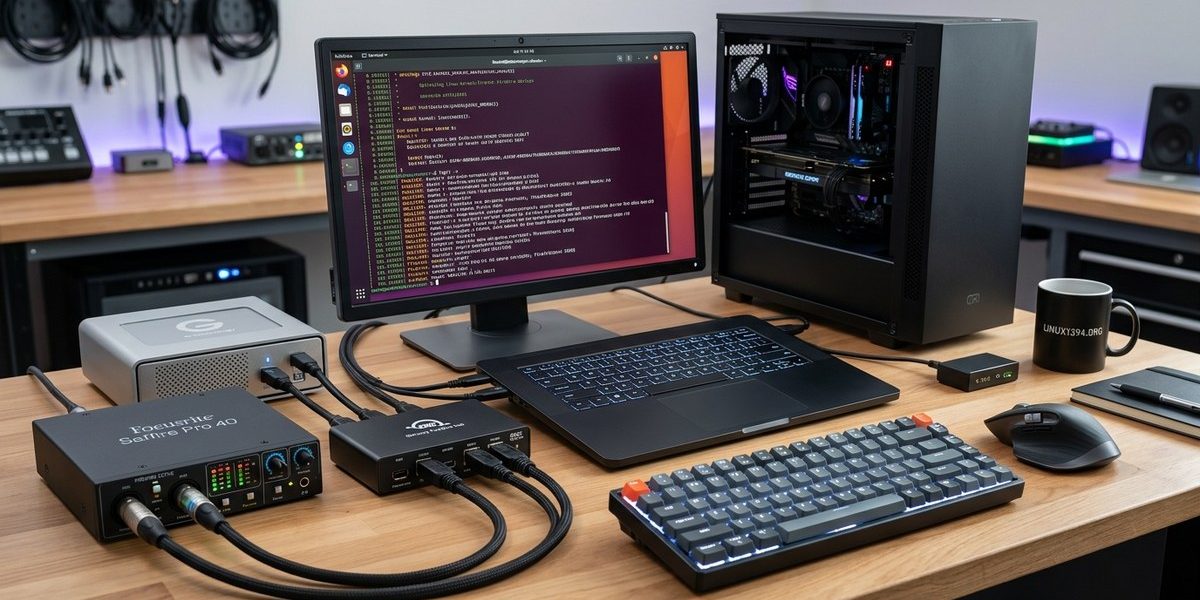
- Use FireWire ports directly on your motherboard rather than through adapters or hubs, which can introduce compatibility issues.
- For audio interfaces, check manufacturer documentation for Linux compatibility.
4. Fine-Tune Kernel Parameters and Power Settings
System tuning can improve device stability:
- Disable aggressive power management for FireWire devices.
- Use
udevadmrules to set permissions and ensure devices are recognized correctly. - Consider disabling CPU frequency scaling or other power-saving features that could interfere with real-time data transfer.
5. Use the Correct Drivers and Tools for Your Application
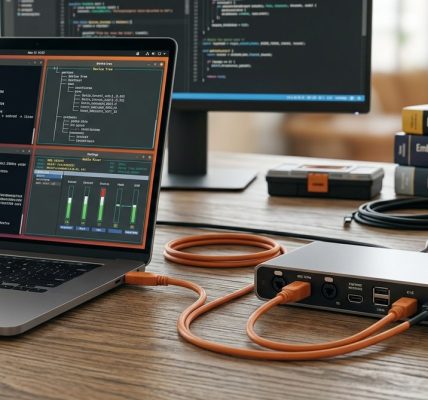
For professional audio, the FireWire Audio Driver (FFADO) is essential:
- Install FFADO from your distribution’s repositories.
- Use
aseqdumpandaseaplayfor testing connections. - For storage devices, standard SCSI or UAS drivers are usually sufficient.
6. Troubleshoot Common Issues
- Device not recognized: Check logs with
dmesgfor error messages. - Intermittent connection: Re-seat cables, test different ports, or swap cables.
- Low performance: Ensure your system is not overloaded and that real-time priorities are set if needed.
Best Practices for FireWire Device Compatibility
| Technique | Mistake to Avoid | Explanation |
|---|---|---|
| Using outdated kernel versions | Ignoring kernel updates | Kernel updates include essential support improvements |
| Connecting devices through hubs | Connecting directly | Hubs can cause signal degradation and compatibility issues |
| Neglecting hardware compatibility | Using unsupported chips | Hardware from certain manufacturers may lack Linux support |
| Overlooking power management | Ignoring power settings | Power-saving features can disrupt data transfer |
| Not testing with diagnostic tools | Skipping device tests | Tools like firewire-connection help identify issues |
Expert tip: Regularly check Linux FireWire mailing lists and forums. Community members often share updates on hardware compatibility and configuration tricks.
Additional Tips for Peak Performance
- Keep your system updated with the latest kernel and drivers.
- Use low-latency or real-time kernel variants if working with professional audio.
- Avoid connecting multiple high-bandwidth devices to the same FireWire bus.
- Use good quality cables and avoid long runs that can cause signal loss.
- For audio work, configure your DAW or recording software to use the FireWire interface explicitly.
Troubleshooting Common Problems
| Issue | Possible Cause | Solution |
|---|---|---|
| Device not detected | Driver not loaded | Manually load modules or check hardware connections |
| Intermittent disconnects | Power issues or bad cables | Replace cables or connect directly to motherboard port |
| Poor audio performance | Kernel or driver bugs | Update kernel, try a real-time kernel, or use FFADO tools |
Embracing the Future of FireWire on Linux
While some consider FireWire a legacy interface, it remains vital in many professional environments. Linux’s ongoing support and community-driven improvements keep it relevant. By ensuring your kernel is current, your hardware is compatible, and your system is tuned, you can enjoy reliable FireWire performance.
Regularly revisit your setup, stay updated with Linux kernel releases, and engage with community forums. These steps help you maintain a stable, high-performing FireWire environment on Linux.
Wrapping Up Your FireWire Optimization Journey
Getting FireWire devices to work flawlessly on Linux requires a blend of hardware awareness, system tuning, and staying current with software updates. Remember to verify hardware compatibility, keep your kernel fresh, and use the right drivers for your needs. With patience and proper configuration, FireWire can deliver the fast, dependable data transfer that professional workflows demand.
Applying these practices will help you unlock the full potential of your FireWire hardware. Troubleshoot systematically, keep your system updated, and enjoy seamless connectivity for your creative and technical projects.