
FireWire (IEEE 1394) might seem like a relic from the early 2000s, but for certain tasks it still outperforms USB 3.0 and even some Thunderbolt configurations. If you are a video editor moving large ProRes files between two workstations, or an embedded systems developer transferring raw sensor data from a test rig, FireWire offers deterministic latency and consistent throughput that modern USB stacks sometimes struggle to match. On Linux, setting up a FireWire network is surprisingly straightforward once you know which kernel modules to load and how to configure the network interface. Let me walk you through the process.
Setting up a Linux FireWire network requires three steps: loading the correct kernel modules (firewire-core, firewire-net), configuring a static IPv4 link-local address on the firewire0 interface, and verifying peer discovery. Performance tuning involves adjusting max_receive and setting the proper S100 to S800 speed for your hardware. This guide covers all of that with concrete commands you can run today.
Why FireWire Still Matters in 2026
FireWire has a reputation for being old tech, but it has specific advantages that keep it relevant for niche workflows. Unlike USB, FireWire supports peer-to-peer communication without a host PC. Two cameras can talk to each other directly. A video capture device can stream data straight to an external drive without touching system RAM. For Linux users, this means lower CPU overhead during high-throughput transfers.
FireWire also handles isochronous transfers natively. If you are doing real-time audio recording or live video capture, the guaranteed bandwidth allocation prevents dropped frames or audio glitches. USB 3.0 can do isochronous transfers too, but the implementation varies wildly between chipsets. FireWire just works.
Hardware You Will Need
Before we touch any configuration files, make sure your hardware is compatible. Most modern Linux distributions still support FireWire, but the chipsets matter.
- Texas Instruments (TI) chipset: The gold standard. Works with every major Linux distribution without issues.
- VIA and Ricoh chipsets: Generally supported, but you may need to tweak kernel parameters.
- Adaptec and Belkin PCIe cards: If your motherboard lacks FireWire ports, a PCIe card with a TI chipset is your best bet.
You also need a FireWire cable. Use a 6-pin to 6-pin cable for full power delivery. If you are connecting a laptop with a 4-pin port, get a 4-pin to 6-pin cable and be aware that the laptop port will not supply bus power.
Step-by-Step FireWire Network Setup
1. Check for Kernel Support
The FireWire stack in Linux has been stable since kernel 2.6.22. Modern kernels (5.x and 6.x series) include the firewire-core and firewire-net drivers. Run this command to see if your kernel has them:
lsmod | grep firewire
If you see firewire_core and firewire_ohci in the output, you are good to go. If not, load them manually:
sudo modprobe firewire-core
sudo modprobe firewire-ohci
sudo modprobe firewire-net
2. Connect Your Devices and Check the Interface
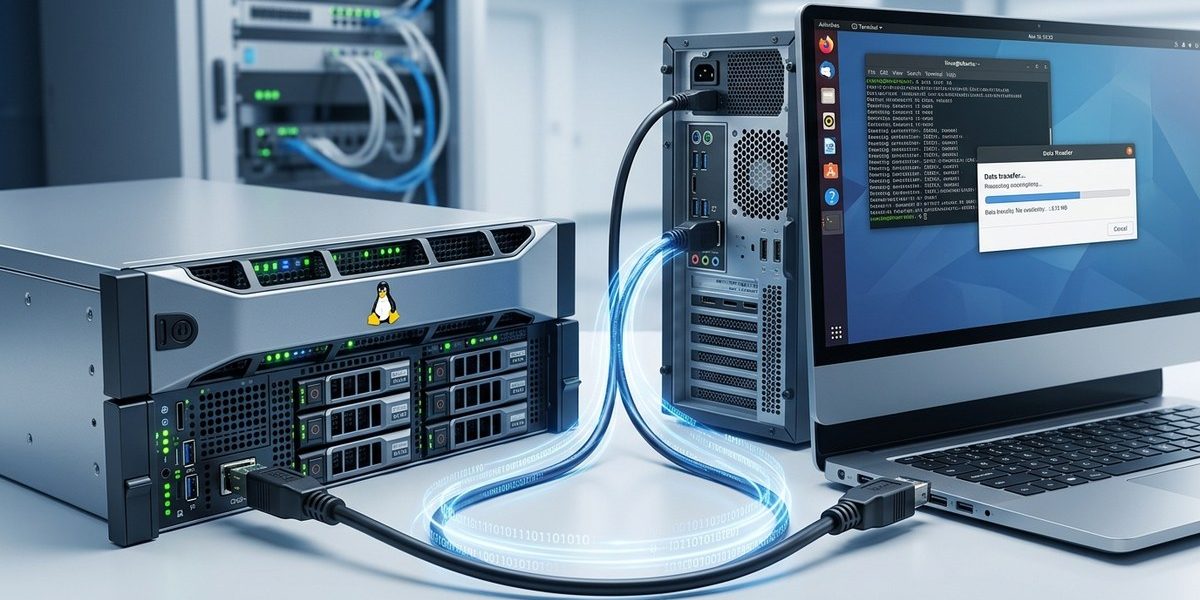
Plug in your FireWire cable between two Linux machines. The kernel should create a network interface called firewire0. Verify with:
ip link show firewire0
If the interface does not appear, check dmesg for errors:
dmesg | grep firewire
Common issues include missing firmware or a faulty cable. If you see messages about “no config ROM,” the device is detected but not responding. Try a different cable or port.
3. Assign Static IPv4 Link-Local Addresses
FireWire networks use link-local addressing (169.254.x.x) by default. You can let Avahi or systemd-networkd handle this automatically, but for a reliable setup, assign static addresses manually.
On machine A:
sudo ip addr add 169.254.1.1/16 dev firewire0
sudo ip link set firewire0 up
On machine B:
sudo ip addr add 169.254.1.2/16 dev firewire0
sudo ip link set firewire0 up
4. Test the Connection
Ping machine B from machine A:
ping -c 4 169.254.1.2
If you get replies, your FireWire network is live. Transfer a test file using scp or rsync to confirm throughput:
rsync -avh --progress large_test_file.bin 169.254.1.2:/tmp/
Performance Tuning for Maximum Throughput
FireWire supports speeds from S100 (100 Mbps) up to S800 (800 Mbps) for FireWire 800 (IEEE 1394b). The kernel negotiates the highest common speed automatically, but you can force a specific speed for consistency.
Check Current Speed
cat /sys/bus/firewire/devices/fw*/isoc_speed
This shows the isochronous speed. For asynchronous transfers (like file copying), check:
cat /sys/bus/firewire/devices/fw*/max_speed
Force a Speed
If you want to lock the speed to S400 (400 Mbps) for stability, write to the sysfs node:
echo S400 | sudo tee /sys/bus/firewire/devices/fw0/max_speed
Tune the Max Receive Size
The max_receive parameter controls how much data the hardware can buffer. Larger values improve throughput but use more memory. Set it to 4096 bytes for most setups:
echo 4096 | sudo tee /sys/bus/firewire/devices/fw0/max_receive
Comparison of FireWire Speeds and Use Cases
| Speed | Max Data Rate | Cable Type | Best For |
|---|---|---|---|
| S100 | 100 Mbps | 6-pin or 4-pin | Legacy cameras, control data |
| S200 | 200 Mbps | 6-pin or 4-pin | Audio interfaces, MIDI |
| S400 | 400 Mbps | 6-pin | Video capture (DV, HDV) |
| S800 | 800 Mbps | 9-pin (FireWire 800) | ProRes, uncompressed SDI |
Common Pitfalls and How to Avoid Them
Even experienced Linux users can stumble on FireWire networking. Here are the most frequent issues I have seen:
- Missing kernel modules: Some distros (especially minimal installs) do not include
firewire-net. Install it withsudo apt install linux-modules-extra-$(uname -r)on Ubuntu or Debian. - FireWire 800 to FireWire 400 adapters: These often introduce signal degradation. Use a native FireWire 800 cable if both devices support it.
- Bus power conflicts: If one device supplies power and the other does not, you may see intermittent disconnects. Use a powered FireWire hub or disable bus power on one device via sysfs.
- IPv6 confusion: FireWire supports IPv6 link-local addresses out of the box. If you see
fe80::addresses onfirewire0, that is normal. Stick with IPv4 for simpler routing.
Expert advice: Always use shielded FireWire cables for runs longer than 4.5 meters. Unshielded cables pick up EMI from nearby power supplies and can cause CRC errors that tank throughput. I have seen a 30% performance drop just by switching from a cheap cable to a shielded one.
Automating the Setup with udev and systemd
Manually configuring the interface every time you plug in a FireWire cable gets old fast. Set up a udev rule to assign the IP address automatically.
Create a file at /etc/udev/rules.d/99-firewire-network.rules:
ACTION=="add", SUBSYSTEM=="net", KERNEL=="firewire*", RUN+="/usr/bin/ip addr add 169.254.1.1/16 dev $name"
Then create a systemd service to bring the interface up at boot:
[Unit]
Description=FireWire network interface
After=firewire-ohci.service

[Service]
Type=oneshot
ExecStart=/usr/bin/ip link set firewire0 up
RemainAfterExit=yes

[Install]
WantedBy=multi-user.target
Enable the service:
sudo systemctl enable firewire-network.service
sudo systemctl start firewire-network.service
For a deeper understanding of persistent device naming, read our guide on how to configure udev for persistent FireWire device names on Linux.
Advanced Configuration for Specialized Workloads
If you are using FireWire for real-time audio production, you need to tweak the kernel’s real-time settings. The firewire-core module supports packet-per-buffer mode, which reduces latency. Enable it with:
echo Y | sudo tee /sys/module/firewire_core/parameters/use_packet_per_buffer
For video production, consider bonding two FireWire interfaces for increased throughput. Linux supports bonding over FireWire, though it is experimental. Use the bonding module with mode 0 (round-robin) or mode 5 (balance-tlb).
If you run into connectivity problems, our guide on troubleshooting common Linux FireWire connectivity issues covers the most frequent errors and their fixes.
Putting Your FireWire Network to Work
Once your network is up and running, you can use it for anything from file transfers to live video streaming. For video editors, mounting an NFS share over FireWire gives you near-local speeds for editing footage stored on a central server. For embedded developers, FireWire provides a reliable transport for JTAG debugging or FPGA programming.
If you need even more performance, check out our advanced guide on enhancing Linux FireWire performance with advanced tuning techniques. It covers interrupt coalescing, DMA buffer sizing, and NUMA node pinning.
Wrapping Up Your FireWire Network Project
Setting up a Linux FireWire network is a practical skill that pays off in specific high-bandwidth, low-latency scenarios. Whether you are moving 4K video between edit bays or streaming sensor data from a test bench, the steps here give you a reliable foundation. Start with the basic connectivity test, then layer on the performance tuning and automation as your needs grow. FireWire may be older technology, but on Linux it still delivers rock-solid performance that newer standards sometimes fail to match. Give it a try on your next project.