
Having trouble getting your FireWire devices to connect reliably on your Linux system? You’re not alone. FireWire, also known as IEEE 1394, offers fast data transfer, especially for audio, video, and external storage devices. But sometimes, connectivity issues can make your setup frustrating. Whether your device isn’t recognized or data transfer stalls, this guide walks you through practical troubleshooting steps to get your FireWire connections back on track.
Troubleshooting Linux FireWire connectivity involves checking hardware connections, verifying system configurations, updating drivers, and inspecting kernel modules. Following systematic steps ensures stable device recognition and data transfer, saving time and preventing future issues.
Understanding FireWire and Common Linux Challenges
FireWire provides high-speed data transfer, but Linux users often encounter issues such as devices not being recognized, inconsistent connections, or transfer failures. These problems can stem from hardware incompatibility, driver issues, kernel configurations, or faulty cables.
Typical signs include devices not showing up in system logs, failure to mount external drives, or devices disconnecting unexpectedly. Recognizing these symptoms early helps narrow down the root causes.
Step-by-Step Process for Troubleshooting FireWire Connectivity
- Check Hardware Connections and Cables
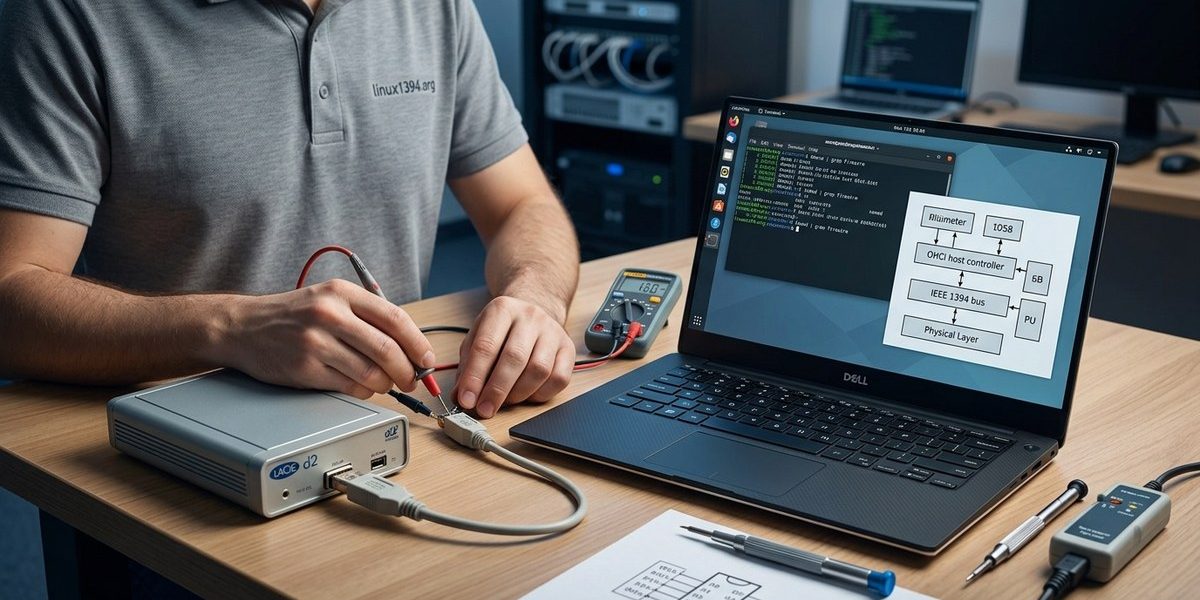
Start with the basics. Ensure that your FireWire cable is firmly connected to both the device and your computer. Swap cables if possible to rule out physical defects. Use a different FireWire port if available, as some ports may have hardware faults.
- Confirm that the device powers on and is functioning correctly with other systems if possible.
-
Inspect connectors for damage or debris. Clean contacts gently if needed.
-
Verify System Recognition and Kernel Modules
Next, check if your system detects the FireWire device at all. Use commands like lsusb and lspci to list connected hardware:
lsusb
lspci | grep -i firewire
If your device appears here, it means the hardware layer recognizes it. If not, proceed to verify kernel modules.
FireWire relies on specific kernel modules for proper operation. Confirm they are loaded:
lsmod | grep firewire
Common modules include firewire_ohci, firewire_core, and ohci1394. If any are missing, load them manually:
sudo modprobe firewire_ohci
sudo modprobe firewire_core
sudo modprobe ohci1394
To make these modules load automatically at startup, add them to /etc/modules.
Expert tip: If you’re using a newer system with a different FireWire controller, check whether the driver
firewire_ohciorfirewire_sbp2is appropriate by consulting your hardware documentation.
- Update and Configure Your Kernel and Drivers
Sometimes, outdated kernel modules or missing firmware cause issues. Ensure your Linux system is up to date with the latest kernel and firmware updates. Use your distribution’s package manager:
sudo apt update && sudo apt upgrade
On some setups, enabling specific kernel options or installing additional firmware packages can resolve compatibility problems. For example, on Debian-based systems, installing firmware-linux might help.
- Inspect System Logs for Clues
System logs provide valuable insights into what happens when you connect your FireWire device. Use dmesg immediately after plugging in the device:
dmesg | grep -i firewire
Look for any error messages or warnings. Common issues include timeout errors, unsupported device messages, or driver conflicts.
The logs might reveal if the device is recognized but not configured correctly or if there are hardware conflicts.
- Test Device Functionality and Data Transfer
Once the device appears in logs, test its functionality:
- Mount external storage devices with
mountor your file manager. - Transfer small files to verify data flow.
- Use tools like
ffmpegfor video devices orarecordfor audio interfaces.
If transfer fails or the device disconnects, try connecting it to different USB or FireWire ports, or disable other peripherals that might cause interference.
Troubleshooting Common Problems and Mistakes
| Technique or Step | Common Mistakes | How to Avoid |
|---|---|---|
| Checking hardware connections | Using damaged cables | Always swap with known good cables |
| Loading kernel modules | Forgetting to load modules at startup | Add modules to /etc/modules |
| Updating system software | Running outdated kernels | Regularly update your OS and firmware |
| Reading logs | Ignoring error messages | Always review dmesg output after connection |
| Testing device functionality | Assuming device is faulty without testing | Test on another system or with different cables |
Additional Tips for Stable FireWire Connections
- Keep your system updated. Kernel updates often improve hardware support.
- Use high-quality cables with proper shielding.
- Avoid connecting multiple high-bandwidth devices to the same FireWire bus.
- Consider disabling power management features that might turn off FireWire ports during idle times.
- If your device still isn’t recognized, check for known hardware compatibility issues on forums or your Linux distribution’s support pages.
Pro tip: Sometimes, manually reloading modules or resetting the FireWire bus can fix recognition issues. Use
sudo modprobe -rto remove modules, then reload them as needed.
When Troubleshooting Isn’t Enough
If your FireWire device still refuses to connect, consider the following:
- Check your hardware compatibility list.
- Test the device on another Linux machine or different OS.
- Update or replace your FireWire controller if hardware faults are suspected.
- Consult your device manufacturer’s documentation for Linux compatibility notes.
Final Words on FireWire Troubleshooting
Getting your FireWire devices working smoothly on Linux often involves a combination of hardware checks and software tweaks. By systematically verifying connections, ensuring correct kernel modules are loaded, and analyzing system logs, you can resolve most connectivity issues. Patience and careful troubleshooting save time and help maintain a reliable, high-speed data transfer environment.
Remember, keeping your system updated and using quality cables can prevent many common problems. Once your setup is stable, you’ll enjoy seamless data transfers with your FireWire devices for years to come.