
FireWire (IEEE 1394) might seem like a relic from a past era, but in 2026 it remains a reliable workhorse for many professional workflows. Whether you are capturing video from a DV camera, transferring data from an external drive, or interfacing with scientific instruments, one thing can make or break your setup: consistent device naming. Nothing derails a session like a device that randomly switches from /dev/firewire0 to /dev/firewire1 after a reboot. The good news is that with a little udev configuration, you can lock down those names for good.
FireWire device naming on Linux can be unpredictable without proper udev rules. By creating custom udev rules based on unique device identifiers like GUID or vendor and product IDs, you can assign persistent symlinks that survive reboots and reconnections. This guide walks you through finding device attributes, writing rules, testing them, and troubleshooting common mistakes. You will gain reliable, repeatable access to your FireWire hardware every single time without surprises or random name changes after reboots.
Why Persistent Naming Matters for FireWire
Linux assigns device nodes like /dev/firewire0 or /dev/fw1 based on the order the kernel discovers them at boot. That order can change if you add a new PCIe card, connect a different USB hub, or simply update your kernel. For a video editor who depends on the same capture script pointing to /dev/firewire0, this unpredictability is a productivity killer.
Persistent names solve this by creating stable symlinks in /dev that point to the actual device node. Instead of guessing which node a camera will land on, you can use a link like /dev/my_cam or /dev/firewire_dv_deck that always points to the right hardware. The Linux kernel provides unique identifiers for every FireWire device, and udev gives you the tools to turn those identifiers into permanent shortcuts.
If you are still getting familiar with broader device management on Linux, our guide on mastering FireWire device management on Linux systems covers the full ecosystem of tools and kernel interfaces.
How FireWire Devices Get Their Names Today
Before you write any rules, it helps to understand what you are working with. When you plug in a FireWire device, the kernel loads the firewire-core module and creates a device node under /dev. You can see the current state of your FireWire bus by running:
ls /dev/fw*
You will see entries like /dev/fw0, /dev/fw1, and so on. These are raw device nodes that provide access to the IEEE 1394 interface. But which one belongs to your camera? The answer is not obvious from the name alone.
To identify a specific device, you need to inspect its unique attributes. FireWire devices carry a 64-bit GUID (Global Unique Identifier) burned into their hardware. This GUID never changes, making it the most reliable attribute for a persistent rule. You can also use vendor and model IDs, which are shorter but may be shared across multiple units of the same product.
Run this command to list all FireWire devices with their GUIDs:
cat /sys/bus/firewire/devices/fw*/guid
Each line gives you a hex GUID like 0x0011060000001234. Note that the GUID may appear with a 0x prefix or without, depending on your kernel version. We will cover both cases in the rule syntax below.
Finding the Right Attributes for Your Device
You need two things before writing a rule: the device GUID and the current kernel device name. Here is a bulleted list of practical steps to gather that information on your system.
- Plug in your FireWire device and let the kernel detect it.
- List the device nodes with
ls /dev/fw*to confirm the device appears. - Check dmesg for the exact GUID:
dmesg | grep -i firewire | grep GUID. - For a more complete picture, exam the sysfs tree:
ls /sys/bus/firewire/devices/. - Read the GUID for each device:
cat /sys/bus/firewire/devices/fw0/guid. - Check the vendor and model IDs:
cat /sys/bus/firewire/devices/fw0/vendorandcat /sys/bus/firewire/devices/fw0/model.
If you have multiple FireWire devices, you can identify each one by temporarily disconnecting and reconnecting them while watching dmesg output. The kernel prints the GUID and model name when it discovers a new device.
For deeper background on how the kernel handles FireWire hardware, our article on understanding low-level FireWire hardware communication on Linux explains the sysfs paths and driver interactions in more detail.
Writing the udev Rule
Now comes the practical part. You will create a udev rules file that matches your FireWire device by GUID and creates a persistent symlink. Follow these numbered steps.
-
Create a new udev rules file in /etc/udev/rules.d/. Name it something clear like 99-firewire-persistent.rules. Using a high number like 99 ensures it runs after most other rules.
-
Open the file with your preferred editor as root:
sudo nano /etc/udev/rules.d/99-firewire-persistent.rules
- Add a rule that matches your device by GUID. The most common syntax looks like this:
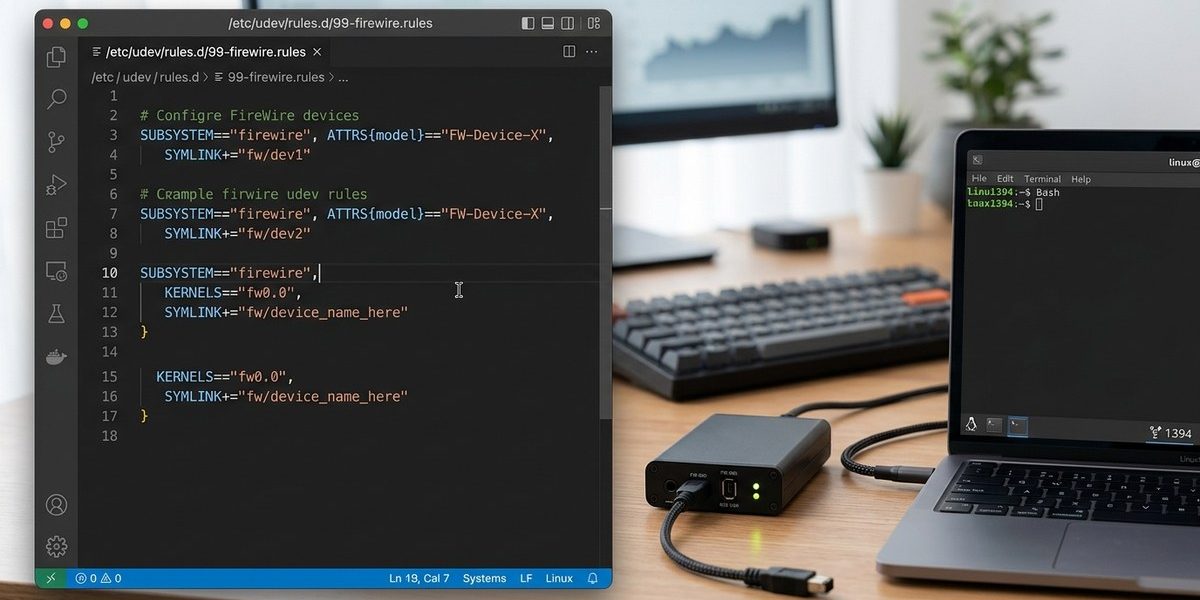
SUBSYSTEM=="firewire", ATTR{guid}=="0x0011060000001234", SYMLINK+="my_cam"
Replace the GUID with the one you found in the previous section. The symlink name can be anything you like, as long as it is unique and descriptive.
- If your device does not have a GUID attribute accessible through the standard sysfs path, you can match by vendor and model IDs instead:
SUBSYSTEM=="firewire", ATTR{vendor}=="0x001106", ATTR{model}=="0x123456", SYMLINK+="my_cam"
-
Save the file and exit the editor.
-
Reload the udev rules and trigger them for existing devices:
sudo udevadm control --reload-rules

   sudo udevadm trigger
- Verify the symlink was created:
ls -l /dev/my_cam
The output should show a symlink pointing to the actual device node, like /dev/fw0.
Expert advice: Always use the full 64-bit GUID when possible. Vendor and model IDs are less specific and may match multiple devices of the same type. If you have two identical FireWire cameras, the GUID is the only way to tell them apart. Write one rule per device with its unique GUID to keep your setup clean.
If your FireWire device still does not show up after writing the rule, our guide on troubleshooting common Linux FireWire connectivity issues covers driver loading, kernel module conflicts, and hardware detection problems.
Testing and Applying the Rule
After reloading the rules, test the symlink by connecting and disconnecting the device. Each time you plug it in, the same symlink should appear. You can automate this verification with a simple script:
#!/bin/bash
if [ -L /dev/my_cam ]; then
    echo "Persistent link is active"
else
    echo "Persistent link is missing"
fi
Run the script after each reboot to confirm the rule persists. If the symlink does not appear, check the udev rule syntax. Common issues include missing commas between attributes, incorrect quotation marks, or wrong sysfs paths.
Reboot your system at least once to test the full boot path. Persistent naming is most valuable when it survives a restart, and that is the moment when most hidden problems surface.
Common Mistakes and How to Avoid Them
Even experienced Linux users can trip up on udev rule syntax. Here is a table of frequent mistakes and their fixes.
| Mistake | What happens | How to fix it |
|---|---|---|
| Missing comma between attributes | The rule fails silently | Separate each ATTR with a comma inside the same line |
| Using single quotes instead of double quotes | Udev may ignore the rule | Always use double quotes around attribute values |
| Wrong sysfs path for the GUID attribute | The match never succeeds | Verify the exact path with udevadm info -a -n /dev/fw0 |
| GUID without the 0x prefix | The comparison fails | Prepand 0x to the hex value in the rule |
| Symlink name conflicts with existing device nodes | The link may not be created | Use a unique name that does not match /dev/fw* patterns |
| Forgetting to reload rules after editing | The old rules stay in effect | Run sudo udevadm control --reload-rules after every change |
Most of these issues are easy to spot once you know what to look for. The udevadm info command is your best friend for debugging. Run it with the current device node to see all available attributes:
udevadm info -a -n /dev/fw0
This prints the full attribute set that udev can match against, including parent device properties. Sometimes the GUID is nested under a parent device, and you need to use a longer path in the rule.
Going Beyond Basic Naming
Once you have persistent symlinks working, you can extend the idea to other areas of your workflow. For example, you might want to assign different symlinks to different device types, like /dev/firewire_hdd for a storage drive and /dev/firewire_cam for a video camera. You can also combine udev rules with other tools to automate mounting, recording, or data transfer tasks.
If you are using a custom kernel or need specialized FireWire hardware support, our resource on building custom Linux kernel modules for FireWire hardware integration shows you how to compile and load modules that give you even more control over device behavior.
You can also explore udev rules that run scripts when a device is connected. This is useful for triggering backups, launching capture software, or sending notifications. Just add a RUN+= directive to your rule:
SUBSYSTEM=="firewire", ATTR{guid}=="0x0011060000001234", SYMLINK+="my_cam", RUN+="/usr/local/bin/on_camera_connect.sh"
Keep in mind that udev runs these scripts in a limited environment. Use absolute paths and avoid interactive commands.
Tying Persistent Names Into Your Daily Workflow
Setting up udev persistent FireWire names is a one time task that pays off every single day. Once your rules are in place, you can stop worrying about device ordering and focus on the actual work, whether that is capturing video, transferring research data, or managing media archives. The GUID based approach is robust, well documented, and works across kernel releases.
If you ever run into a situation where a device stops appearing, check the kernel module first. The firewire-core module must be loaded, and the device must be visible in /sys/bus/firewire/devices/. From there, your udev rules will handle the rest.
Take fifteen minutes today to identify your FireWire devices, write the rules, and test the symlinks. That small investment will save you from troubleshooting sessions later, and it will make your Linux system feel more predictable and professional. Your future self, booting up before a critical shoot or experiment, will thank you.