
If you have ever run out of disk space on a Linux server in the middle of a workday, you already know the pain. Traditional partitions are rigid. They do not bend when your needs change. That is where the Logical Volume Manager, or LVM, changes everything. With LVM, you can resize storage pools without rebooting, combine multiple disks into one logical space, and even take point in time snapshots for safer backups. This Linux LVM tutorial walks through the entire workflow from first install to everyday management. Whether you are a sysadmin managing a handful of servers or a DevOps engineer automating infrastructure at scale, understanding LVM gives you the kind of storage flexibility that makes your job much easier.
LVM gives Linux administrators the power to resize storage pools without downtime, combine multiple disks into a single volume group, and take snapshots for safer backups. Unlike traditional partitioning, LVM abstracts physical hardware, letting you add or replace drives while your system stays online. This tutorial walks through every step from installing LVM to resizing volumes in production. You will learn how physical volumes, volume groups, and logical volumes make storage management flexible and painless.
What Makes LVM Different from Traditional Partitioning
Standard disk partitions work fine when you know exactly how much space you need and never change your mind. That scenario almost never happens in real life. A database grows faster than expected. A log directory fills up overnight. A new application needs its own dedicated storage. With traditional partitions, you end up shuffling data around, deleting partitions, or adding new disks with more manual intervention.
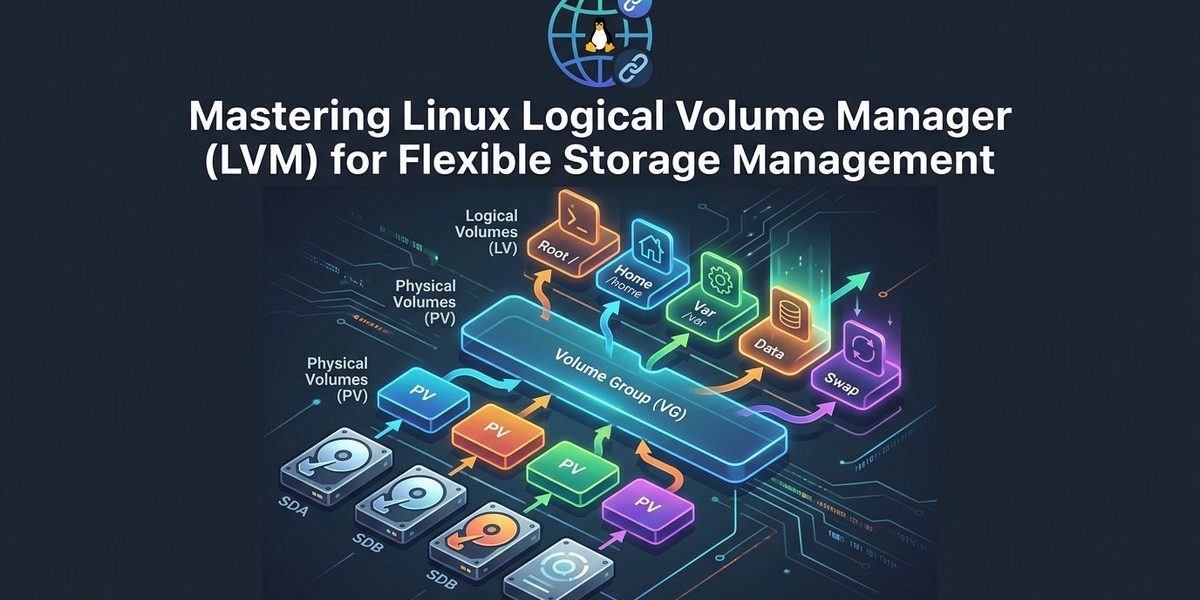
LVM solves this by adding an abstraction layer between the physical hardware and the filesystem that you interact with. Instead of writing directly to a partition, you work with these components:
- Physical Volumes (PV) : Any disk or partition that you mark for use with LVM. This is the raw hardware.
- Volume Groups (VG) : A pool of storage that combines one or more physical volumes. Think of it as a bucket of space.
- Logical Volumes (LV) : Virtual partitions carved out of a volume group. These are what you format with a filesystem and mount.
Expert advice: Treat your volume group like a shared bank account. You allocate logical volumes from it, but you can always take space back or add more funds (disks) later without closing the account.
This layered approach means you never have to guess the final size of a partition. You can start small and grow as needed. You can also move data between physical disks without the application noticing.
A Complete Walkthrough: Creating Your First LVM Setup
Let us walk through the process from scratch. For this example, assume you have three disks attached to your system: /dev/sdb, /dev/sdc, and /dev/sdd. They can be different sizes. LVM handles that just fine.
Step 1: Install the LVM Packages
Most modern Linux distributions include LVM in the default repositories, but you may need to install the tools explicitly.
sudo apt update
sudo apt install lvm2
On Red Hat family systems, use dnf install lvm2 instead. Once installed, confirm the tools are available with which pvcreate vgcreate lvcreate.
Step 2: Prepare the Disks as Physical Volumes
Use pvcreate to mark each disk (or partition) as a physical volume.
sudo pvcreate /dev/sdb /dev/sdc /dev/sdd
Run sudo pvs to see a summary of all physical volumes. Each disk now holds an LVM label at the start of the device. No data is stored yet.
Step 3: Create a Volume Group
Combine the physical volumes into a single storage pool called a volume group.
sudo vgcreate data_pool /dev/sdb /dev/sdc /dev/sdd
Run sudo vgs to verify the group exists. You should see the total size of all three disks combined. In my test setup with three 50 GB drives, the group shows roughly 150 GB of available space.
Step 4: Create Logical Volumes
Now carve out logical volumes from the pool. You decide how much space each one gets.
sudo lvcreate L 40G n app_data data_pool
sudo lvcreate L 30G n log_data data_pool
sudo lvcreate L 60G n backup_storage data_pool
Run sudo lvs to list all logical volumes. They appear under /dev/data_pool/ with the names you gave them. You now have three virtual block devices ready for filesystems.
Step 5: Format and Mount
Format each logical volume with a filesystem and mount it.
sudo mkfs.ext4 /dev/data_pool/app_data
sudo mkfs.xfs /dev/data_pool/log_data
sudo mkfs.ext4 /dev/data_pool/backup_storage

sudo mkdir /srv/app /var/log/app /srv/backups
sudo mount /dev/data_pool/app_data /srv/app
sudo mount /dev/data_pool/log_data /var/log/app
sudo mount /dev/data_pool/backup_storage /srv/backups
Add the mount entries to /etc/fstab using the logical volume path or UUID to make them persist across reboots.
This completes the basic setup. You now have a flexible storage system that can grow and shrink without the constraints of physical partitions.
Everyday LVM Commands You Will Reach For
Managing LVM day to day involves a handful of commands. Here are the ones you will use most often.
| Task | Command | Common Mistake |
|---|---|---|
| Extend a logical volume | lvextend L +10G /dev/vg_name/lv_name |
Forgetting to resize the filesystem with resize2fs or xfs_growfs |
| Reduce a logical volume | lvreduce L 20G /dev/vg_name/lv_name |
Not shrinking the filesystem first, which corrupts data |
| Add a new disk to a volume group | vgextend vg_name /dev/sde |
Not scanning for the new disk with partprobe or reboot |
| Remove a disk from a volume group | vgreduce vg_name /dev/sdb |
Not migrating data off the disk first with pvmove |
The pattern is consistent. You operate on the logical volume, then adjust the filesystem to match. For ext4, use resize2fs. For XFS, use xfs_growfs (note that XFS does not support shrinking online).
Snapshots: Safety Net for Updates and Migrations
One of the most practical features in LVM is the snapshot. A snapshot creates a point in time copy of a logical volume without duplicating all the data. It uses a copy on write scheme. When the original data changes, the old version is saved to the snapshot space.
Creating a snapshot is straightforward.
sudo lvcreate s 10G n app_snapshot data_pool/app_data
This creates a snapshot named app_snapshot with 10 GB of allocated space for storing differences. The snapshot lives in the same volume group. You can mount it read only and verify data before performing a risky upgrade or migration.
sudo mkdir /mnt/snapshot
sudo mount o ro /dev/data_pool/app_snapshot /mnt/snapshot
When you are done, remove the snapshot with lvremove.
sudo lvremove /dev/data_pool/app_snapshot
Snapshots are not a replacement for backups. They depend on the original volume. If the original volume fails, the snapshot becomes unusable. Use them as a tool for safe deployments and short term recovery, not long term archiving.
Growing Storage Without Downtime
A database server running out of space at 2 PM on a Tuesday is a bad day. With LVM, you can fix it without taking the application offline.
Assume your /srv/app mount is at 90 percent capacity and you have free space in your volume group. Extend the logical volume while the system is live.
sudo lvextend L +20G /dev/data_pool/app_data
sudo resize2fs /dev/data_pool/app_data
The filesystem grows instantly. No unmount required. If you run out of space in the volume group itself, add a new disk to the server and extend the group.
sudo pvcreate /dev/sde
sudo vgextend data_pool /dev/sde
Then extend the logical volume as shown above. The entire process takes less than a minute. Applications never pause.
For XFS filesystems, replace resize2fs with xfs_growfs /mount/point using the mount point instead of the device path.
Performance Considerations and Thin Provisioning
LVM adds a small amount of overhead compared to raw partitions, but for most workloads the difference is negligible. Enterprise storage arrays and NVMe drives handle LVM without noticeable latency. You can tune performance by adjusting the extent size when creating a volume group (the default of 4 MB works for most setups).
Thin provisioning is a feature worth knowing about. It lets you overcommit storage by creating logical volumes that appear larger than the physical space available. This works well in virtualized environments where not every VM uses its full allocation at the same time.
sudo lvcreate T data_pool thin_pool L 100G
sudo lvcreate V 200G T data_pool/thin_pool n thin_volume
Monitor thin pool usage carefully with lvs o+thin_percent. Running out of space in a thin pool causes data corruption. Set automatic extension thresholds or use monitoring tools to avoid surprises.
If you are managing multiple servers, consider automating the setup with configuration management tools. Our guide on how to automate Linux server provisioning with Ansible in 2026 shows how to apply LVM configurations at scale.
When Things Go Wrong: Recovering from Mistakes
Even experienced administrators make mistakes with LVM. Here are the most common failure patterns and how to recover.
Accidentally removing the wrong physical volume. If you run pvremove on a disk that still has data, you lose the LVM metadata but the data remains on the disk. You can often recover by scanning with pvscan and using vgcfgrestore if you have a backup of the volume group metadata.
Volume group not found after reboot. This usually happens when the system cannot activate the volume group because of an ordering issue. Run vgchange ay to activate all groups. For persistent fixes, ensure lvm2 service starts at boot and check that /etc/lvm/lvm.conf does not filter out your devices.
Filesystem corruption after a failed resize. If a power loss occurs during a resize operation, the filesystem may become inconsistent. Boot from a rescue environment and run fsck on the logical volume. With XFS, use xfs_repair.
Our article on how to troubleshoot Linux boot issues with systemd and Journalctl can help when LVM related boot failures leave you staring at a black screen.
Integrating LVM with the Rest of Your Infrastructure
LVM does not live in isolation. It interacts with nearly every layer of a Linux system. File systems, backup tools, monitoring agents, and storage arrays all touch LVM volumes at some point when you manage modern infrastructure.
For monitoring, tools like prometheus with the node_exporter can report LVM metrics. You can track volume group free space, logical volume usage, and thin pool utilization. Our walkthrough on how to use Linux perf for hardware performance monitoring in 2026 complements LVM monitoring by showing how to measure storage performance at the kernel level.
Security hardening also applies to LVM. Encrypt logical volumes with LUKS on top of LVM. Restrict access to LVM command binaries. Regularly audit volume group configurations. The top 10 Linux security hardening techniques for production servers covers these practices in detail.
And if you work with specialized hardware like FireWire storage devices, the same LVM principles apply. You can create physical volumes on FireWire disks and add them to volume groups just like internal SATA drives. Our guide on mastering FireWire device management on Linux systems shows the specifics of working with external storage.
Avoiding Common Pitfalls in Production
Experience teaches a few hard lessons about LVM in production environments. Here are the ones that cause the most pain.
- Running a volume group at 100 percent capacity. A full volume group stops all write operations. Leave at least 5 percent free for snapshots and emergency operations.
- Taking snapshots without monitoring their growth. A snapshot that fills up becomes invalid and can cause the original volume to stall. Set monitoring alerts on snapshot usage.
- Resizing filesystems without checking the type. Remember that XFS cannot shrink. Plan your filesystem choices carefully from the start.
- Forgetting to update
/etc/fstabafter moving logical volumes. If you migrate a logical volume to a different path, the old fstab entry prevents the system from booting.
If you follow these guidelines, LVM becomes a reliable part of your storage strategy rather than a source of surprises.
Your LVM Toolkit for 2026
LVM continues to evolve alongside the Linux ecosystem. The 2026 kernel includes improved thin pool performance and better integration with NVMe fabrics. The user space tools have added more granular reporting and safer resize operations.
To stay prepared, build a small lab environment. Use virtual machines with virtual disks to practice creating volume groups, taking snapshots, and recovering from failures. The muscle memory you build in a lab pays off when a production server needs emergency attention.
For deeper reading on related topics, check out our tutorial on optimizing Linux kernel modules for enhanced hardware compatibility and the guide on mastering system monitoring tools for Linux power users. Both will help you round out the skills you need to manage storage and performance in modern Linux environments.
Start Small, Grow Confidently
The best way to learn LVM is to start using it. Pick one server that is not yet in production, convert a spare disk into a physical volume, and create a logical volume. Format it, mount it, and watch how easy it is to extend when you add more data. Once you see how painless resizing can be, you will wonder why you put up with traditional partitions for so long. LVM gives you control over storage without locking you into fixed decisions. Use that flexibility to build systems that adapt to real world demands.