
If you own a FireWire audio interface from the late 2000s or early 2010s, you already know the struggle. You have a piece of gear that still sounds fantastic. Maybe it is a Focusrite Saffire, a Presonus FireStudio, or an RME Fireface. You want to keep using it with a modern Linux workstation, but every distro update feels like a gamble. In 2026, the Linux kernel still supports FireWire, but that support requires specific configuration. You do not need to abandon your hardware. You need a structured way to track what works and what does not. That is where a compatibility matrix becomes your most valuable tool.
A FireWire audio interface compatibility matrix for Linux in 2026 is a living document that maps your specific hardware to kernel versions, driver modules, udev rules, and JACK or Pipewire settings. Building one saves hours of re-testing after each system update. This guide walks you through identifying your chipset, testing connectivity with the ieee1394 stack, and documenting results so your studio stays stable.
Why a Compatibility Matrix Matters for FireWire on Linux
FireWire support in Linux relies on the ieee1394 kernel subsystem and the raw1394 userspace library. These components are maintained but not heavily tested against every audio interface on the market. Unlike USB class-compliant devices, FireWire interfaces often use proprietary streaming protocols. A device that works perfectly on kernel 6.5 might produce buffer underruns on kernel 6.8.
A compatibility matrix helps you isolate variables. When you upgrade your kernel or switch from ALSA to Pipewire, you can check your matrix to predict problems before they crash a session. For a working example of how to structure this testing, see our guide on mastering FireWire device management on Linux systems.
Step 1: Identify Your FireWire Chipset and Controller
Before you plug anything in, you need to know what hardware you are dealing with. FireWire interfaces use different controller chips, and Linux support varies by chipset.
Run this command to list your FireWire controller:
lspci | grep -i firewire
Common chipsets you will see include:
- Texas Instruments (TI) chipsets. These are the most reliable on Linux.
- VIA chipsets. These can be problematic with certain audio interfaces.
- Ricoh and NEC chipsets. These are common in laptops and often work well.
Write down the chipset model and the subsystem vendor ID. You can get the full vendor and device IDs with lspci -n. Store this information in your matrix.
Step 2: Load the Correct Kernel Modules
Modern Linux distributions do not always load FireWire modules by default. You need to ensure these modules are available and loaded at boot.
Check what is currently loaded:
lsmod | grep -E "firewire|ieee1394|raw1394"
If you see nothing, load them manually:
sudo modprobe firewire-core
sudo modprobe raw1394
Some interfaces also require the ieee1394 module. Load it if your device does not appear after the first two.
For persistent configuration, add these module names to /etc/modules-load.d/firewire.conf. This ensures they load on every boot. If you encounter issues with module ordering, read our article on optimizing Linux kernel modules for enhanced hardware compatibility.
Step 3: Test Basic Connectivity
With the modules loaded, connect your FireWire interface and check if the system detects it.
dmesg | tail -20
You should see lines mentioning firewire or ieee1394 with your device name. If you see error messages about timeouts or bus resets, your chipset may need a different module configuration.
Next, check if the device appears in the ALSA device list:
aplay -l
arecord -l
If your interface shows up, you have basic ALSA support. If it does not, your interface may require a proprietary driver or a specific ffado configuration. The FFADO project (Free FireWire Audio Drivers for Linux) supports many popular interfaces.
Step 4: Build Your Matrix Table
Now you need to document everything. A simple Markdown table works well for this. Here is a template you can adapt:
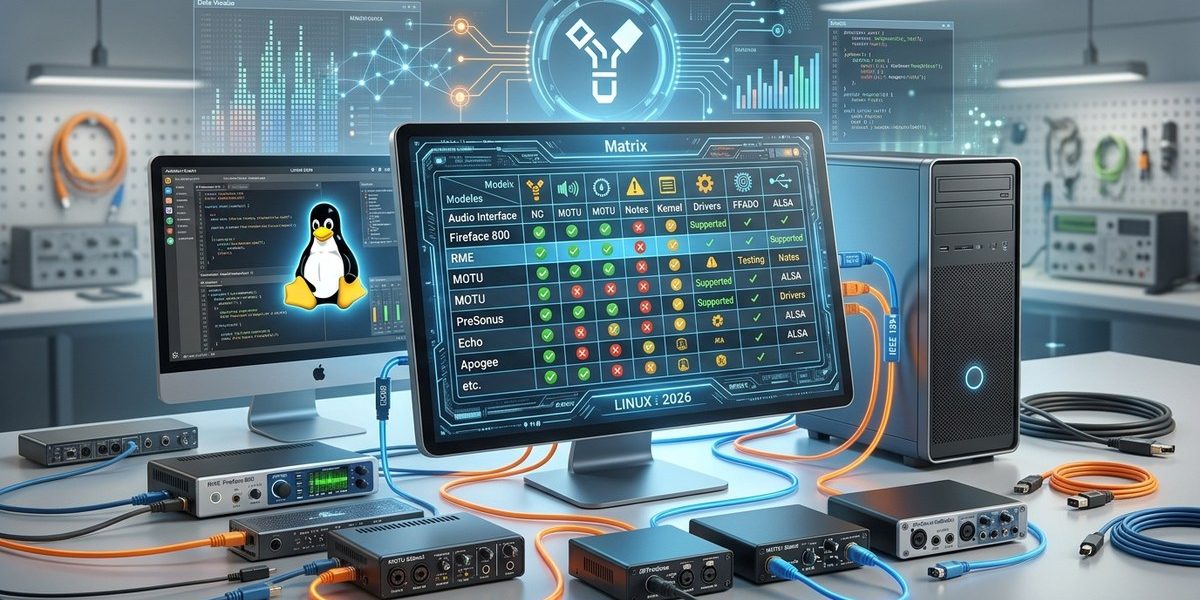
| Interface Model | Chipset | Kernel Version | Module Setup | ALSA Detected | JACK Works | Pipewire Works | Notes |
|---|---|---|---|---|---|---|---|
| Focusrite Saffire Pro 40 | TI | 6.8.7 | firewire-core + raw1394 | Yes | Yes | Yes | Requires 48kHz sample rate |
| Presonus FireStudio | VIA | 6.8.7 | firewire-core + ieee1394 | No | No | No | Bus timeout error |
| RME Fireface 800 | TI | 6.8.7 | firewire-core + raw1394 | Yes | Yes | Partial | Latency spikes above 64 samples |
Update this table every time you change your kernel, your audio server, or your interface firmware. Over time, patterns will emerge. You will know exactly which kernel versions to avoid and which module combinations are stable.
Step 5: Configure udev Rules for Persistent Device Names
FireWire devices can change their device path between reboots. This breaks your DAW session configurations. Use udev rules to assign a consistent symbolic link.
Create a file at /etc/udev/rules.d/99-firewire-audio.rules with content like this:
SUBSYSTEM=="firewire", ATTRS{vendor}=="0x1234", ATTRS{model}=="0x5678", SYMLINK+="firewire-audio"
Replace the vendor and model attributes with the values from your lspci -n output. Then reload udev:
sudo udevadm control --reload-rules
sudo udevadm trigger
Your interface will now appear at /dev/firewire-audio consistently. For more detail on this process, check our guide on how to configure udev for persistent FireWire device names on Linux.
Step 6: Test with JACK and Pipewire
Your matrix is only useful if it covers real-world audio performance. Test with both JACK and Pipewire, because they handle FireWire differently.
For JACK, start a session with:
jackd -d firewire -r 48000 -p 256 -n 3
For Pipewire, ensure the pipewire-ffado package is installed. Then start Pipewire and check your connections with pw-cli.
Record a few minutes of audio at different buffer sizes. Note any xruns (buffer underruns) in your matrix. If you see consistent xruns above 10 per minute at a 256 sample buffer, that kernel version may not be suitable for tracking.
Expert advice: Always test with the sample rate you actually use in production. Many FireWire interfaces on Linux work fine at 44.1 kHz or 48 kHz, but fail at 96 kHz. Document this in your matrix so you do not waste time troubleshooting later.
Common Mistakes and How to Avoid Them
Here is a bulleted list of pitfalls that beginners often hit when building their FireWire compatibility matrix:
- Forgetting to load modules before plugging in the device. The order matters. Load
firewire-corefirst, then connect the interface. - Using a generic kernel without real-time patches. For audio work, consider a low-latency kernel like
linux-image-lowlatencyon Ubuntu or alinux-rtkernel on Arch. - Ignoring power management. FireWire interfaces are sensitive to USB power saving features on laptops. Disable
power.dandtlpfor the FireWire bus. - Skipping the chipset check. A VIA chipset with a Presonus interface is a known failure combination. Do not assume all FireWire ports are equal.
A Practical Workflow for Testing
Follow this numbered process to build your matrix systematically:
- Boot into a known working kernel. Start with whatever kernel your distro shipped with.
- Load the three core modules (
firewire-core,raw1394,ieee1394) one at a time, checkingdmesgafter each. - Connect your interface and run
aplay -l. Record whether it appears. - Start JACK with the firewire backend at your target sample rate and buffer size.
- Record a 5-minute test track. Count xruns.
- Switch to Pipewire. Repeat the recording test.
- Log every result in your matrix table. Include the kernel version, the module set, the audio server, the sample rate, and the xrun count.
- Repeat this process after every kernel update. Do not skip a version.
How to Use Your Matrix for Troubleshooting
Your matrix becomes a diagnostic map. If you update your kernel and your interface stops working, check your matrix for the last kernel version that worked. Boot into that kernel from your GRUB menu. If it still works, the problem is in the new kernel. If it also fails, the issue is hardware related.
You can also use the matrix to decide when to hold back kernel updates. If you have a critical session coming up and your current kernel is stable, pin that kernel version in your package manager. On Debian-based systems, use apt-mark hold linux-image-6.8.7. On Arch, add IgnorePkg = linux to your pacman.conf.
For deeper troubleshooting of bus-level issues, read our guide on troubleshooting common Linux FireWire connectivity issues.
Building a Community Matrix
Your personal matrix is useful, but a shared community matrix is better. Many FireWire interfaces share the same chipset and driver behavior. If you document your results and share them on forums or wikis, you help other musicians avoid the same trial and error.
Consider contributing your findings to the FFADO hardware compatibility list or posting them on the linux1394.org forum. Include your kernel version, your distro, your interface model, and a simple “works” or “does not work” verdict. Over time, these crowd-sourced matrices become the most reliable resource for FireWire audio interface Linux compatibility in 2026.
Your Matrix Is a Living Document
The most important thing to remember is that FireWire support on Linux is not static. Kernel developers occasionally refactor the ieee1394 subsystem. Pipewire updates change how audio streams are routed. Your matrix must evolve with these changes.
Set a recurring calendar reminder to test your interface after every kernel update. Spend 15 minutes running through your test process. Update your matrix. This small habit will save you from discovering a broken setup right before a session.
Take your matrix seriously. It is the difference between a studio that feels fragile and one that you can trust for years to come.