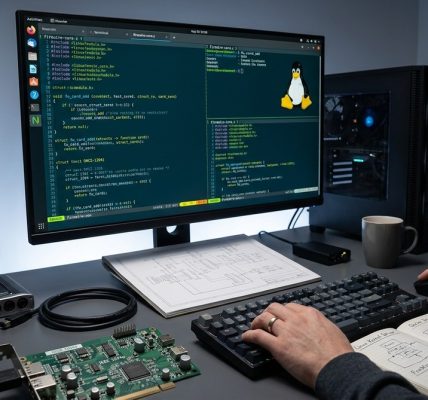

Debugging the Linux kernel can feel like navigating a maze. When kernel issues strike, quick diagnosis and effective troubleshooting become essential. Whether you’re dealing with slow performance, system crashes, or hardware incompatibilities, mastering kernel debugging techniques can save you hours of frustration. This guide walks you through proven methods, tools, and best practices to become confident in diagnosing and resolving kernel problems efficiently.
Effective Linux kernel debugging combines understanding kernel internals with practical tools. Focused setup, strategic logging, and careful analysis enable quick problem resolution and kernel optimization for better system stability and performance.
Understanding the importance of kernel debugging techniques
Kernel debugging techniques are vital for Linux developers and system engineers. They help identify bugs, performance bottlenecks, and hardware compatibility issues. Unlike user-space debugging, kernel debugging requires specialized tools and approaches, since the kernel operates at a low level and interacts directly with hardware.
Getting comfortable with kernel debugging means you can quickly pinpoint problems without resorting to guesswork. It also improves your ability to optimize kernel modules and hardware drivers, leading to more stable and efficient systems. Developing these skills involves a mix of understanding kernel internals, using the right tools, and following structured troubleshooting processes.
Setting up a kernel debugging environment
A robust debugging environment is the foundation of effective troubleshooting. Here’s how to prepare your setup:
- Use a dedicated testing machine or virtual environment. Avoid debugging production systems unless absolutely necessary. Virtual machines or test servers allow safe experimentation.
- Compile the kernel with debugging symbols. Enable CONFIG_DEBUG_INFO in your kernel configuration. This includes detailed symbols necessary for many debugging tools.
- Install debugging tools. Essential utilities include GDB, Dmesg, Kernel Shovel, and ftrace. You can install these through your package manager, like
aptoryum. - Configure kernel crash dump support. Enable kdump to capture kernel memory dumps after a crash. This aids post-mortem analysis.
- Set up serial console or netconsole. These interfaces provide remote access to kernel logs, especially useful for diagnosing kernel panics.
Once your environment is ready, you can begin applying specific debugging techniques.
Techniques for effective kernel troubleshooting
1. Using kernel logs for initial insights
Kernel logs are your first line of defense. Commands like dmesg display messages generated during boot and operation. They often contain clues about hardware initialization issues, driver errors, or warnings. Regularly reviewing logs helps identify recurring problems.
To improve log visibility, configure persistent logging via journalctl if using systemd. Filtering logs by severity or specific modules can narrow down the root cause quickly.
2. Enabling and analyzing kernel debug options
Kernel configurations include numerous debug options. For instance, enabling DEBUG_KERNEL or specific subsystem debugging options like CONFIG_DEBUG_FS provides more verbose output. When facing a problem, activating these options temporarily can shed light on hidden issues.
Use sysctl or /proc interfaces to tweak debugging parameters at runtime. For example, adjusting kernel.printk levels controls console message verbosity.
3. Using ftrace for tracing kernel functions
Ftrace is a powerful tool for tracing kernel function calls, timing, and events. It helps identify performance bottlenecks or unexpected code paths.
To activate ftrace, mount the debugfs filesystem:
mount -t debugfs none /sys/kernel/debug
Then, enable specific tracers such as function graph or function:
echo function > /sys/kernel/debug/tracing/current_tracer
cat /sys/kernel/debug/tracing/trace
Analyzing the trace output reveals how kernel functions interact and where delays or errors occur.
4. Employing kernel crash dumps for post-mortem analysis
When a kernel panic occurs, having crash dumps can be invaluable. Configure kdump to automatically capture memory snapshots:
- Install crash dump utilities.
- Enable crash kernel memory reservation during boot.
- Configure dump target (local disk or network).
Post-mortem analysis with tools like crash allows you to examine kernel stack traces, memory states, and process info at the moment of failure.
5. Leveraging dynamic debugging features
Linux includes a dynamic debugging framework that allows enabling debug messages in kernel modules at runtime. This capability avoids recompiling kernels.
To activate debugging for a module:
echo "module_name function" > /sys/kernel/debug/dynamic_debug/control
This flexibility helps isolate issues within specific modules or functions without rebuilding.
Common pitfalls and mistakes in kernel debugging
| Technique | Common Mistake |
|---|---|
| Relying solely on logs | Ignoring kernel internal state or hardware signals |
| Enabling too many debug options | Causing performance degradation or system instability |
| Misinterpreting trace data | Failing to correlate trace info with actual system behavior |
| Ignoring post-mortem analysis | Missing deeper insights from crash dumps |
| Not isolating variables | Overlooking interactions between components |
Expert advice from seasoned kernel developers
“Always start with the simplest tools like dmesg and logs. Use detailed tracing or crash dumps only when necessary. Keeping your environment prepared and understanding kernel internals makes troubleshooting much more manageable.” — Kernel debugging veteran
Practical tips for mastering kernel troubleshooting
- Develop a systematic approach: gather logs, enable relevant debug options, and isolate components.
- Use virtual machines for experimenting without risking production stability.
- Keep your kernel and tools updated to leverage recent debugging improvements.
- Document your troubleshooting process for future reference or team sharing.
- Regularly review kernel documentation and community resources for insights.
Practical steps to improve your debugging skills
- Set up a dedicated kernel debugging environment.
- Practice enabling and interpreting kernel logs.
- Experiment with ftrace to understand function interactions.
- Try capturing and analyzing crash dumps after induced failures.
- Use dynamic debugging to explore specific modules or functions.
The value of continuous learning in kernel debugging
Kernel debugging techniques are not static. As Linux evolves, so do the tools and best practices. Staying current with kernel releases and community discussions sharpens your troubleshooting skills. Regular practice and expanding your toolset make you more efficient at resolving complex issues.
By integrating these techniques into your workflow, troubleshooting becomes less daunting. You gain confidence in diagnosing problems, leading to more stable systems and optimized kernel modules.
Elevate your Linux kernel troubleshooting skills
Troubleshooting the Linux kernel demands patience, curiosity, and methodical practice. Building your toolkit with the right techniques ensures you can face kernel issues head-on. Remember, each problem solved enhances your mastery and contributes to more robust Linux systems.
Start applying these strategies today. With experience, you’ll find kernel debugging to be an engaging challenge rather than a frustrating obstacle.