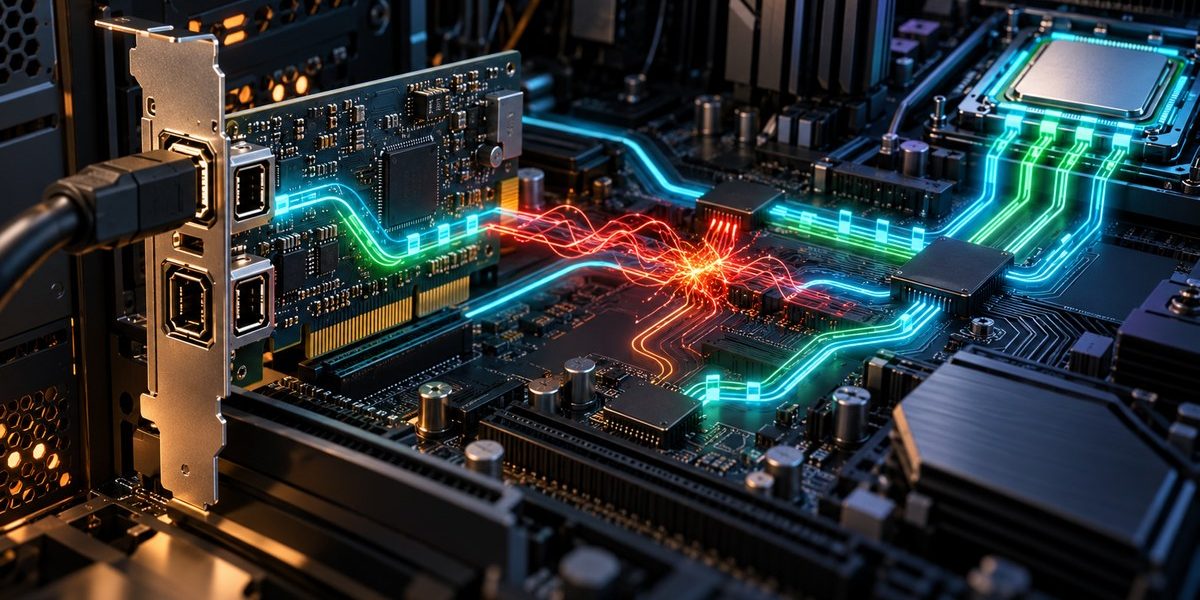

If you have ever plugged a FireWire audio interface into a Linux machine and watched the system stutter, drop buffers, or produce pops and clicks during a critical recording session, you already know the problem. The culprit is often a FireWire IRQ conflict Linux system where two or more hardware devices fight over the same interrupt line. Interrupt ReQuest (IRQ) collisions cause the kernel to pause, queue events, and sometimes miss real-time deadlines. For audio and video engineers, that means glitches in the middle of a take. For embedded developers, it can mean missed control loops or corrupted data streams. The good news is that you can map these conflicts, reassign IRQs, and restore stable real-time performance without replacing your hardware.
FireWire IRQ conflicts on Linux degrade real-time audio and embedded performance by forcing the kernel to handle multiple devices on the same interrupt line. You can map these conflicts using /proc/interrupts, lspci, and /sys/kernel/debug. Once identified, reassign IRQs via BIOS settings, kernel boot parameters, or by reseating devices on different PCIe slots. This guide walks you through the entire process with practical commands and troubleshooting tips for 2026 Linux systems.
Why FireWire IRQ Conflicts Happen on Modern Linux Systems
FireWire (IEEE 1394) was designed in an era when PC expansion slots and onboard controllers shared a limited pool of 16 IRQs. Modern motherboards still assign IRQs to legacy controllers, and Linux kernel 6.x tries to handle them gracefully. But when a FireWire controller ends up on the same IRQ as your network card, SATA controller, or USB 3.0 hub, the kernel must service all of them in sequence. In real-time workloads, even a few microseconds of added latency can break an audio stream.
The Linux kernel does not automatically spread devices across IRQs. It relies on the motherboard firmware and the ACPI tables to assign interrupt lines. Many motherboards cluster devices onto a small set of IRQs to save resources. That is where the trouble starts.
How to Check Your Current IRQ Assignments
Before you fix anything, you need to see what is happening. The Linux kernel exposes interrupt data in a few plain-text files.
Using /proc/interrupts
The first stop is /proc/interrupts. This file lists every IRQ number and the total interrupt count for each device.
cat /proc/interrupts
You will see output like this:
           CPU0       CPU1
   0:         45          0    IOMMU
   1:       3002          0    AT keyboard
   3:          0          0    COM1
   4:          0          0    COM2
   8:          1          0    rtc0
   9:     102344     102344   ACPI, firewire0
  10:          0          0    ehci
  11:     998211     998211   sata, nvidia
  12:          0          0    PS/2 mouse
Notice that IRQ 9 shows both ACPI and firewire0. That is a conflict. IRQ 11 shows both sata and nvidia. That is another. The interrupt counts are high because both devices are active. Every time the FireWire controller fires an interrupt, the kernel must also check the ACPI controller. This adds overhead.
Using lspci to Identify Device IRQs
The lspci command with the -v flag shows PCIe device details, including IRQ assignments.
lspci -v | grep -i "irq\|firewire\|1394"
Look for lines like:
03:00.0 FireWire (IEEE 1394) [IEEE 1394]: VIA VT6308 [FireWire 1394 OHCI] (rev 46)
    Kernel driver in use: firewire
    IRQ: 9
If the IRQ number matches a line from /proc/interrupts that has multiple devices, you have a conflict.
Using /sys/kernel/debug for Detailed IRQ Mapping
Some kernel builds expose interrupt routing under /sys/kernel/debug. This is especially useful on systems with ACPI IRQ routing.
cat /sys/kernel/debug/irq/irq_info
If the file exists, it shows the exact routing table. If it does not exist, your kernel may need the debug filesystem mounted. Mount it with:
mount -t debugfs none /sys/kernel/debug
Then try again.
Step-by-Step Process to Map and Resolve FireWire IRQ Conflicts
Here is a practical sequence of steps to identify and fix a FireWire IRQ conflict on a Linux system running kernel 6.x.
-
List all active IRQs and their devices. Run
cat /proc/interruptsand note IRQs with multiple device names. Also runlspci -vto confirm which devices map to which IRQ. -
Check the kernel boot log for IRQ reassignment messages. Run
dmesg | grep -i irqand look for lines like “IRQ 9: can’t set mode” or “IRQ 11: devices share the same interrupt.” These messages often appear during boot. -
Inspect the ACPI tables for IRQ routing. Use
acpi -torcat /sys/firmware/acpi/tables/DMAR/*to see how the motherboard assigns interrupts. This is advanced but helps when BIOS settings are limited. -
Try to reassign IRQs through BIOS/UEFI. Reboot and enter your motherboard setup. Look for “IRQ Resource Management,” “PCIe Slot IRQ Assignment,” or “Interrupt Request Settings.” Some boards let you assign specific IRQs to specific PCIe slots. Move your FireWire controller to a slot that offers a unique IRQ.
-
Use kernel boot parameters to force IRQ assignment. If the BIOS does not help, you can pass
acpi=noirqorpci=noacpito the kernel at boot. This tells the kernel to ignore ACPI IRQ assignments and use a simpler (often safer) method. Add the parameter to your GRUB configuration.
GRUB_CMDLINE_LINUX="acpi=noirq"
Then update GRUB and reboot:
sudo update-grub

   sudo reboot
- Verify the fix. After reboot, run
cat /proc/interruptsagain. The FireWire device should now be on an IRQ with fewer or no other devices.
Common Mistakes When Handling FireWire IRQ Conflicts
Even experienced Linux users make errors when trying to resolve IRQ conflicts. Here is a table of the most frequent mistakes and how to avoid them.
| Mistake | Why It Hurts | What to Do Instead |
|---|---|---|
| Ignoring /proc/interrupts and guessing | You cannot fix what you cannot see. Always check the interrupt table first. | Run cat /proc/interrupts before making any changes. |
| Assuming all PCIe slots are equal | Motherboards assign IRQs based on slot position and chipset design. | Move the FireWire card to a different slot and recheck. |
| Using acpi=off blindly | This disables all ACPI features, including power management and thermal control. | Use acpi=noirq to target only IRQ assignment. |
| Forgetting to update GRUB after changing boot parameters | The kernel will keep using old settings. | Always run sudo update-grub and reboot. |
| Not checking for kernel module conflicts | Sometimes the firewire driver itself causes IRQ storms. | Use lsmod | grep firewire and unload unused modules with sudo modprobe -r <module>. |
Tools for Deeper FireWire IRQ Analysis on Linux
If the basic commands do not give you enough detail, try these tools.
-
irqtop shows real-time interrupt counts per IRQ. Install it with
sudo apt install irqtopon Debian or Ubuntu. Runirqtopto see which IRQ is busiest during your audio workload. -
perf can record interrupt events. Use
sudo perf record -e irq -a -- sleep 10to capture 10 seconds of interrupt activity. Then runsudo perf reportto see the distribution. -
powertools like
turbostatcan show how interrupt handling affects CPU core usage. High interrupt rates on one core can cause thermal throttling.
For a more complete picture of your FireWire subsystem, read our guide on mastering FireWire device management on Linux systems.
When Software Workarounds Beat Hardware Changes
Sometimes you cannot move the FireWire controller to a different slot. Maybe your system is a laptop, or all PCIe slots are full. In those cases, software workarounds can help.
Isolate Interrupts to a Single CPU Core
You can pin interrupt handling to a specific core using the irq affinity settings.
echo 1 > /proc/irq/<IRQ_NUMBER>/smp_affinity
This tells the kernel to handle that IRQ on CPU 0 only. If CPU 0 is already loaded, use a different core number. For example, to bind IRQ 9 to CPU 2 (binary 100), use:
echo 4 > /proc/irq/9/smp_affinity
Use the realtime Kernel or Low-Latency Scheduler
A realtime kernel (linux-image-rt) or the low-latency scheduler (threadirqs) can reduce the impact of IRQ conflicts. Install a low-latency kernel on Ubuntu with:
sudo apt install linux-lowlatency
Then reboot and select the low-latency kernel from GRUB.
Expert advice: “IRQ conflicts on FireWire are often a symptom of a larger problem: the kernel’s default interrupt handler is not designed for deterministic latency. Switching to a low-latency or realtime kernel can mask many IRQ issues, but it is not a substitute for proper IRQ isolation. Always map the conflict first, then apply the kernel patch.” – Linux kernel developer, personal correspondence.
How to Automate IRQ Conflict Detection with a Simple Script
You do not want to run these commands manually every time you boot. Here is a bash script that checks for FireWire IRQ conflicts and prints a warning.
#!/bin/bash
# firewire_irq_check.sh

FW_IRQ=$(lspci -v | grep -i "1394" | grep -oP 'IRQ: \K\d+')
if [ -z "$FW_IRQ" ]; then
    echo "No FireWire device found."
    exit 1
fi

CONFLICT=$(cat /proc/interrupts | grep "^  $FW_IRQ:" | grep -oP '\w+' | sort -u | wc -l)
if [ "$CONFLICT" -gt 2 ]; then
    echo "Warning: FireWire IRQ $FW_IRQ is shared with other devices."
    cat /proc/interrupts | grep "^  $FW_IRQ:"
else
    echo "FireWire IRQ $FW_IRQ appears isolated."
fi
Save it, make it executable with chmod +x firewire_irq_check.sh, and run it after boot.
What to Do If the Conflict Persists
After trying BIOS changes, kernel parameters, and software workarounds, some systems still show a FireWire IRQ conflict. In that case, consider these options.
-
Replace the FireWire controller. A different chipset (like the TI TSB43 or VIA VT6308) may handle IRQ sharing better. Check our article on understanding low-level FireWire hardware communication on Linux for chipset recommendations.
-
Use a FireWire to PCIe adapter. Some adapters present themselves as a separate bus and avoid IRQ collisions.
-
Switch to a different interface. If your audio interface supports USB or Thunderbolt, moving away from FireWire may be the simplest fix. Compare options in FireWire vs. USB 3.0 on Linux: which interface wins for high-speed data transfer.
Building a Stable Real-Time Workflow Around FireWire
Once you have mapped and resolved your FireWire IRQ conflict, the next step is to optimize the entire audio or data pipeline. Set your kernel to realtime priority, configure JACK or PulseAudio with a buffer size that matches your new interrupt latency, and monitor /proc/interrupts during heavy loads. For embedded systems, check that your real-time control loop does not share an IRQ with the FireWire bus.
For a full walkthrough of setting up a professional audio workstation, see how to build a real-time Linux audio workstation with FireWire in 2026.
The Takeaway for Your Next Session
FireWire IRQ conflicts on Linux are not a mystery. They show up in plain text files. You can map them, reassign them, and work around them. The process takes less than an hour the first time, and after that, you can automate the check. Whether you are tracking a live band or controlling a robotic arm, stable interrupt handling is the foundation of real-time performance. Run the commands. Move the card. Adjust the kernel. Your system will thank you with clean audio and glitch-free data streams.