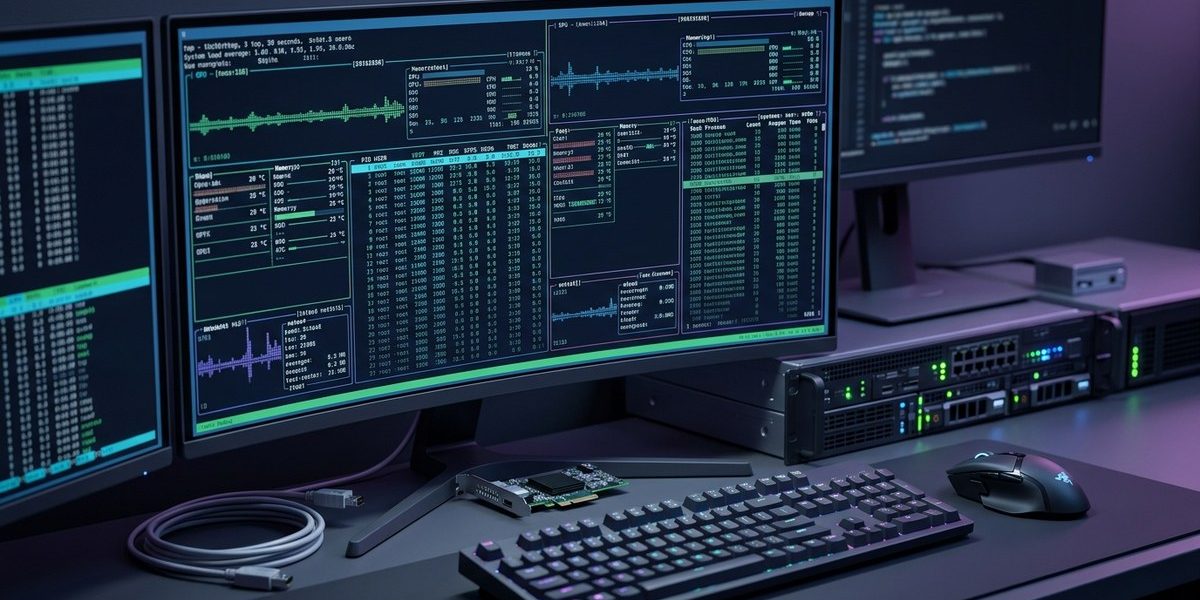

Monitoring your Linux system becomes more than just checking CPU or memory usage. For power users and system administrators, it’s about having the right tools at your fingertips to diagnose, optimize, and maintain peak performance. Whether managing multiple servers or fine-tuning a single workstation, mastering these tools unlocks a deeper understanding of your system’s inner workings.
Advanced Linux monitoring tools provide detailed insights into system performance. By integrating command-line utilities, graphical interfaces, and automation techniques, power users can troubleshoot issues faster and optimize resources effectively. Mastering these tools enhances system reliability and performance management across complex environments.
Getting the most out of your Linux system requires more than basic commands. It demands a strategic approach, combining a variety of specialized tools designed for in-depth analysis. This guide introduces the top monitoring utilities and techniques tailored for seasoned users who want to see beneath the surface of system metrics.
The Role of Advanced Monitoring in Linux Systems
Linux systems are renowned for their flexibility and control. However, with power comes responsibility. Administrators and enthusiasts need tools that can handle the complexity of modern setups. These tools should not only display real-time metrics but also facilitate troubleshooting, automation, and long-term analysis.
Effective system monitoring enables you to catch issues before they escalate, identify bottlenecks, and tune your hardware and software configurations. For power users, combining command-line utilities with graphical dashboards offers a comprehensive view, making troubleshooting faster and more precise.
Essential Command-Line Tools for Deep System Insights
Command-line tools form the backbone of Linux system monitoring. They are lightweight, scriptable, and highly customizable. Here are some of the most powerful utilities every advanced user should master:
1. Top and Htop for Interactive Process Monitoring
While the classic top command provides real-time process information, htop offers a more user-friendly, colorful interface with interactive controls. Both tools allow sorting processes by CPU, memory, or I/O, which helps in pinpointing resource hogs.
To install htop, run:
sudo apt install htop
Use it by typing:
htop
2. Iostat and Vmstat for Disk and Memory Analysis
iostat reports CPU and I/O statistics, revealing disk bottlenecks. It’s part of the sysstat package. To install and use:
sudo apt install sysstat
iostat -xz 1
vmstat provides a snapshot of system memory, processes, and CPU activity:
vmstat 1
3. Netstat and Nload for Network Monitoring
netstat displays active network connections, interfaces, and routing tables. To get detailed info:
netstat -tulnp
nload offers real-time bandwidth usage per interface:
sudo apt install nload
nload
4. Iotop for Disk I/O by Process
iotop shows disk I/O per process, crucial for diagnosing slow disk activity:
sudo apt install iotop
sudo iotop
5. Perf for Performance Profiling
perf is a powerful profiler that helps in analyzing CPU performance and hotspots:
sudo apt install linux-tools-common linux-tools-generic
perf top
Visual Tools and GUIs for Power Users
While command-line tools are essential, graphical interfaces can provide a broader perspective. They are useful for monitoring multiple metrics simultaneously and creating custom dashboards.
1. Glances for a Cross-Platform Overview
glances aggregates data from various sources into a single terminal dashboard. It supports plugins and can be extended with custom scripts.
To install:
pip3 install glances
Run it with:
glances
2. Grafana and Prometheus for Long-Term Monitoring
For large-scale environments, combining Prometheus with Grafana creates a powerful monitoring stack. Prometheus scrapes metrics from exporters, while Grafana visualizes data with customizable dashboards.
3. Netdata for Real-Time Insights
netdata is a lightweight, real-time monitoring tool with beautiful web dashboards. It’s easy to install and offers detailed metrics on CPU, memory, disks, and networks:
bash <(curl -Ss https://my-netdata.io/kickstart.sh)
Advanced Techniques for Power Users
Beyond basic commands, integrating tools into scripts and automation workflows can save time and improve accuracy.
1. Automate Alerts with Scripts
Use scripting languages like Bash or Python to monitor key metrics and trigger alerts. For example, a script can check CPU load and send an email if it exceeds a threshold.
2. Use System Tap and BPF for Kernel-Level Debugging
Tools like SystemTap and BPF (Berkeley Packet Filter) allow you to probe kernel functions, analyze system calls, and gather detailed performance data.
3. Log Analysis and Long-Term Data Storage
Combine journald, logwatch, or centralized solutions like the ELK stack for log analysis. Regularly reviewing logs helps identify patterns and recurring issues.
Common Pitfalls in Linux Monitoring and How to Avoid Them
| Mistake | Technique to Prevent | Explanation |
|---|---|---|
| Relying on a single tool | Use multiple tools for comprehensive view | No one utility provides all insights. Combining command-line tools with dashboards covers more ground. |
| Ignoring historical data | Set up long-term storage | Without logs and metrics history, troubleshooting becomes guesswork. Use databases or time-series storage. |
| Overloading monitoring systems | Focus on key metrics | Excessive monitoring can slow down your system. Prioritize critical metrics and set sensible refresh rates. |
| Not automating alerts | Script and automate | Manual checks are inefficient. Automate to get timely notifications for issues. |
Expert tip: Automate routine checks with scripts and schedule them via cron. For example, a script that runs
htopin batch mode or checks disk I/O periodically can catch issues early.
Fine-Tuning Your System for Peak Performance
Monitoring is just the first step. Use the insights gained to optimize your system:
- Adjust process priorities with
niceandrenice. - Tune kernel parameters via
sysctl. - Optimize disk performance with
fioandhdparm. - Balance load across multiple CPUs or servers with clustering tools.
Regularly review your monitoring setup. As your environment grows, your tools and techniques should evolve too.
Tracking Down Bottlenecks and Troubleshooting with Confidence
For complex systems, combining data from different tools provides clarity. Use perf to identify CPU hotspots, iotop for disk issues, and network monitors like nload or iftop to analyze traffic.
Create custom dashboards with Grafana or Netdata to visualize trends over time. Set up alerts for abnormal activity to catch problems before users notice.
Staying Ahead with Continuous Monitoring
Power users understand the importance of staying proactive. Automate data collection, set thresholds, and regularly review metrics. Incorporate new tools as they emerge, and tailor your setup to your unique environment.
Monitoring is an ongoing process. The more familiar you become with advanced tools, the better you can maintain system health and troubleshoot issues swiftly.
Keep Your Linux Systems Running Smoothly
Mastering Linux system monitoring tools for power users unlocks new levels of control. With the right combination of command-line utilities, graphical dashboards, and automation, you turn raw data into actionable insights. Continually refine your approach, and your systems will run more reliably, efficiently, and securely.
Remember, the key is to understand your environment deeply. Use these tools to gain that understanding, and your troubleshooting and optimization efforts will become more effective than ever.
