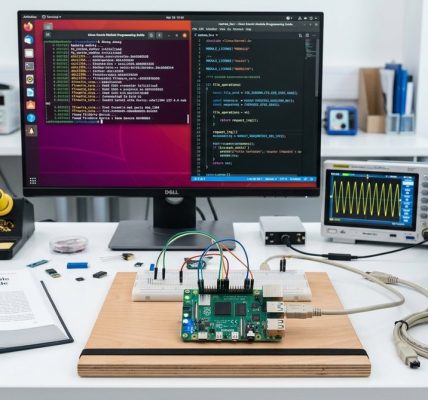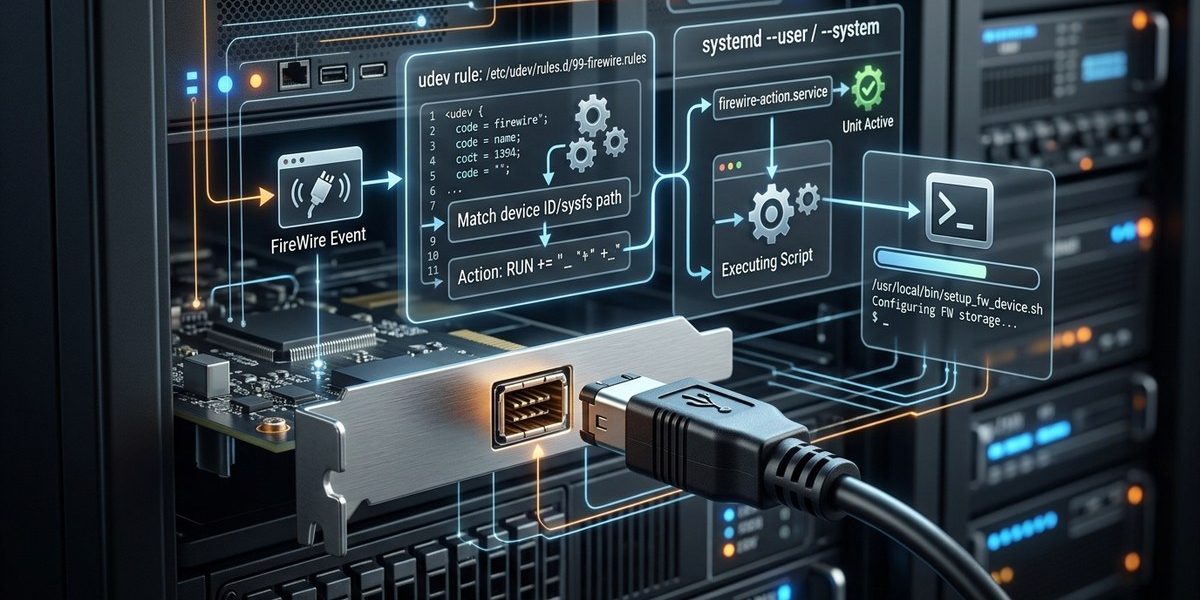

You plug in a FireWire audio interface or a video camera. You expect your Linux workstation to recognize it and prepare the environment. But nothing happens. No automount. No service start. No log entry you can use. That is where a custom udev firewire hotplug rule becomes your best friend. With a few lines of configuration, you can turn a passive plug event into an automated workflow that loads drivers, mounts storage, or launches a recording application.
A udev firewire hotplug rule lets your Linux system react instantly when a FireWire device connects. You write a matching rule in /etc/udev/rules.d, then pair it with a systemd service or a short script. This approach works for IEEE 1394 cameras, audio interfaces, and external drives. It saves manual intervention and keeps your workflow predictable every time you plug in hardware.
Understanding the udev FireWire Hotplug Rule Structure
Udev listens for kernel events. When you connect a FireWire device, the kernel broadcasts a message that includes vendor IDs, product IDs, and connection type. Your job is to write a rule that catches that event and runs an action. A typical rule for FireWire looks at the SUBSYSTEM and ID_FS_LABEL or ID_MODEL attributes.
A basic udev firewire hotplug rule has three parts:
- A match condition that identifies the device.
- An assignment that sets device permissions or symlinks.
- A run action that triggers a script or a systemd service.
You place the rule file in /etc/udev/rules.d/ with a name like 99-firewire-hotplug.rules. The number at the start controls the order in which udev processes rules. A higher number means later processing.
Writing Your First udev FireWire Hotplug Rule
Start by identifying your device. Plug it in and run udevadm info to see the attributes.
udevadm info -a -n /dev/firewire0
Look for lines that contain ATTRS{idVendor} or ATTRS{idProduct}. For a FireWire camera, you might see something like ATTRS{idVendor}=="0a6b". Copy those values into your rule.
Here is a rule that creates a persistent symlink and runs a script when a specific FireWire device connects:
ACTION=="add", SUBSYSTEM=="firewire", ATTRS{idVendor}=="0a6b", \
  ATTRS{idProduct}=="1234", SYMLINK+="my_camera", \
  RUN+="/usr/local/bin/firewire_connect.sh"
Save that file as /etc/udev/rules.d/99-firewire-camera.rules. Then reload the rules:
sudo udevadm control --reload-rules
Unplug and replug the device. The script should execute each time the device appears.
Combining a udev Rule with systemd for Reliable Actions
Running a script directly from a udev rule works, but it has limitations. Udev runs actions with limited time and environment. For complex tasks like starting a service or mounting a filesystem, you should use systemd instead.
The pattern is simple:
- Write a udev rule that sets an environment variable or a tag.
- Write a systemd service that activates when that tag appears.
- Use
ENV{SYSTEMD_WANTS}to link them.
Here is a udev rule that tells systemd to start a service named [email protected]:
ACTION=="add", SUBSYSTEM=="firewire", \
  ENV{SYSTEMD_WANTS}="firewire-capture@$env{ID_SERIAL_SHORT}.service"
Then create a systemd service file /etc/systemd/system/[email protected]:
[Unit]
Description=FireWire capture service for device %i

[Service]
Type=oneshot
ExecStart=/usr/local/bin/firewire_capture.sh %i
RemainAfterExit=no
After you create the service, run sudo systemctl daemon-reload. Now every time the FireWire device connects, systemd starts the service with the device serial as an argument.
Common Mistakes When Writing a udev FireWire Hotplug Rule
Even experienced sysadmins hit a few snags. The table below lists the most frequent errors and how to fix them.
| Mistake | Symptom | Fix |
|---|---|---|
| Wrong attribute name | Rule never matches | Use udevadm info -a to get exact attribute names from the device |
Missing SYMLINK or RUN |
Rule matches but does nothing | Add an action; rules without an action are ignored |
| Script path is wrong | Script does not run | Use absolute paths and make the script executable |
| Udev runs as root but script needs display | No GUI appears | Use systemd with User= directive or DISPLAY variable |
| Rule file has wrong permissions | Udev skips the file | Set file mode to 0644 and owner to root |
Testing Your udev FireWire Hotplug Rule Without Unplugging
You do not need to physically disconnect the device every time you change the rule. Use udevadm test to simulate a plug event.
sudo udevadm test $(udevadm info -q path -n /dev/firewire0)
That command replays the device event through your rules. You can see which rules matched and what actions they triggered. It saves a lot of time when you are iterating on a rule.
When to Use a Script vs. a systemd Service
Deciding between a direct RUN and a systemd service depends on what you need to do.
- Use a direct script for simple tasks:
- Log the event to a file.
- Toggle an LED or a GPIO pin.
-
Send a notification via
notify-send. -
Use a systemd service for complex tasks:
- Mount a FireWire drive with specific options.
- Start a JACK audio server for a FireWire interface.
- Run a backup job that depends on network or other services.
A good rule of thumb: if your task needs more than three lines of bash or depends on other systemd units, use the service approach.
Real World Example: Automating a FireWire Audio Interface
I manage a studio workstation that uses a FireWire audio interface. Every time the interface connects, I need to load the ALSA driver, set the sample rate, and start JACK. Here is the udev firewire hotplug rule I use:
ACTION=="add", SUBSYSTEM=="firewire", \
  ATTRS{idVendor}=="1a2b", ATTRS{idProduct}=="3c4d", \
  ENV{SYSTEMD_WANTS}="firewire-audio-setup.service"
The systemd service file runs a script that calls amixer and jack_control. The script also writes a timestamp to a log so I can track uptime. When the interface disconnects, a separate udev rule with ACTION=="remove" stops the service and cleans up.
sudo systemctl stop firewire-audio-setup.service
That keeps the system clean. No orphaned processes or stale ALSA configurations.
Security Considerations for udev FireWire Hotplug Rules
FireWire has direct memory access. A malicious device could read your RAM. Always verify the vendor and product IDs in your rule. Do not use a rule that matches all FireWire devices unless you are in a trusted environment.
You can also restrict rules to specific kernel names or bus locations.
ACTION=="add", SUBSYSTEM=="firewire", \
  KERNEL=="firewire0", RUN+="/usr/local/bin/trusted_device.sh"
For production servers that do not need FireWire, consider blacklisting the firewire kernel module entirely. You can read more about that in our guide on optimizing linux kernel modules for enhanced hardware compatibility.
Debugging a udev FireWire Hotplug Rule That Does Not Fire
Sometimes a rule looks correct but never runs. Here is a numbered checklist to find the problem.
- Check that the device is actually using the FireWire subsystem. Run
lsusbandlspci. Some FireWire devices appear as USB or PCI Express devices. - Verify your rule syntax with
udevadm test. Look for the line that saysIMPORTorRESULT. If the result is empty, your match condition is wrong. - Look at the systemd journal for udev events. Run
journalctl -fand plug the device. You should see a line likeUDEV [event] add /devices/.../firewire0. - Confirm the rule file name ends in
.rulesand is in/etc/udev/rules.d/. Files in/lib/udev/rules.d/are overwritten by updates. - Make sure the action script is executable. Run
chmod +x /path/to/script. - Test the script manually. If it fails when you run it by hand, it will fail when udev runs it.
- For systemd services, check the service status with
sudo systemctl status firewire-audio-setup.service. Look for error messages in the journal.
For more tools to diagnose hardware faults, see our list of 5 essential linux commands for diagnosing firewire hardware faults.
Advanced Technique: Using udev Rules to Set Power Management
FireWire devices sometimes go to sleep or lose the bus. You can use a udev firewire hotplug rule to set power management parameters on connection.
ACTION=="add", SUBSYSTEM=="firewire", \
  ATTRS{idVendor}=="0a6b", \
  RUN+="/bin/sh -c 'echo N > /sys/bus/firewire/devices/firewire0/power/autosuspend'"
That prevents the kernel from suspending the FireWire bus when the device is idle. It is useful for audio and video work where latency matters.
Automating Multiple Devices with One udev FireWire Hotplug Rule
If you have several FireWire devices that need the same treatment, use a wildcard or a fallback rule. For example, you can match all FireWire storage devices and mount them automatically.
ACTION=="add", SUBSYSTEM=="firewire", \
  ENV{ID_FS_TYPE}=="ntfs|vfat|ext4", \
  RUN+="/usr/local/bin/auto_mount_firewire.sh"
The script can check the filesystem type and mount the device to a directory based on its label. This approach works well for camera operators who swap cards between shoots.
Keeping Your udev Rules Organized for 2026
As your collection of rules grows, keep them in separate files. Name them clearly. A file called 99-firewire-audio.rules is easier to maintain than a single monolithic 99-local.rules.
Add comments to each rule so you remember what it does.
# Rule for FireWire audio interface
# Vendor 0x1a2b, Product 0x3c4d
ACTION=="add", SUBSYSTEM=="firewire", ...
Use version control for your /etc/udev/rules.d/ directory. A simple git repository lets you roll back changes if a new kernel version breaks something.
Making Your Workflow Resilient
A udev firewire hotplug rule is only as good as the action it triggers. Test your scripts with error handling. Wrap them in a function that logs failures.
#!/bin/bash
LOG="/var/log/firewire_hotplug.log"
echo "$(date): Device $1 connected" >> "$LOG"
# Your main action here
if [ $? -ne 0 ]; then
  echo "$(date): Action failed" >> "$LOG"
fi
That log file becomes your first stop when something goes wrong. You can combine it with systemd journal entries to get a full picture of the event.
Putting It All Together
A udev firewire hotplug rule transforms a simple hardware connection into an automated system response. You identify the device with vendor and product IDs, write a matching rule, and link it to a script or a systemd service. Test with udevadm test, watch the journal, and iterate until the action fires reliably every time.
Start with one device. Write a rule that logs the event. Then expand to mount drives, launch audio servers, or start recording software. The pattern is the same for all FireWire peripherals. Once you have the workflow, you can apply it to any hotpluggable hardware on your Linux system.
For a broader look at managing IEEE 1394 devices, read our guide on mastering firewire device management on linux systems. It covers driver selection, kernel configuration, and troubleshooting common issues.
Now go write that rule. Your future self will thank you every time a device connects and everything just works.